ZoneGaze Flow can coordinate multiple coding agents, but every agent should enter the workflow with clear provider state, project context, and review expectations. Configure the agent before real work starts.
Agent Readiness
Agent setup is ready only when the runtime, provider, project, and task settings all agree. Before starting meaningful work, confirm:
- the agent appears in Settings and is installed or connected
- required provider authentication is complete
- the selected model or provider is appropriate for the task risk
- the project path and Git base ref are the ones you expect
- plan mode and review behavior match how much human approval the task needs
- the prompt includes the validation command, browser route, or manual check that should prove the work
Open Settings
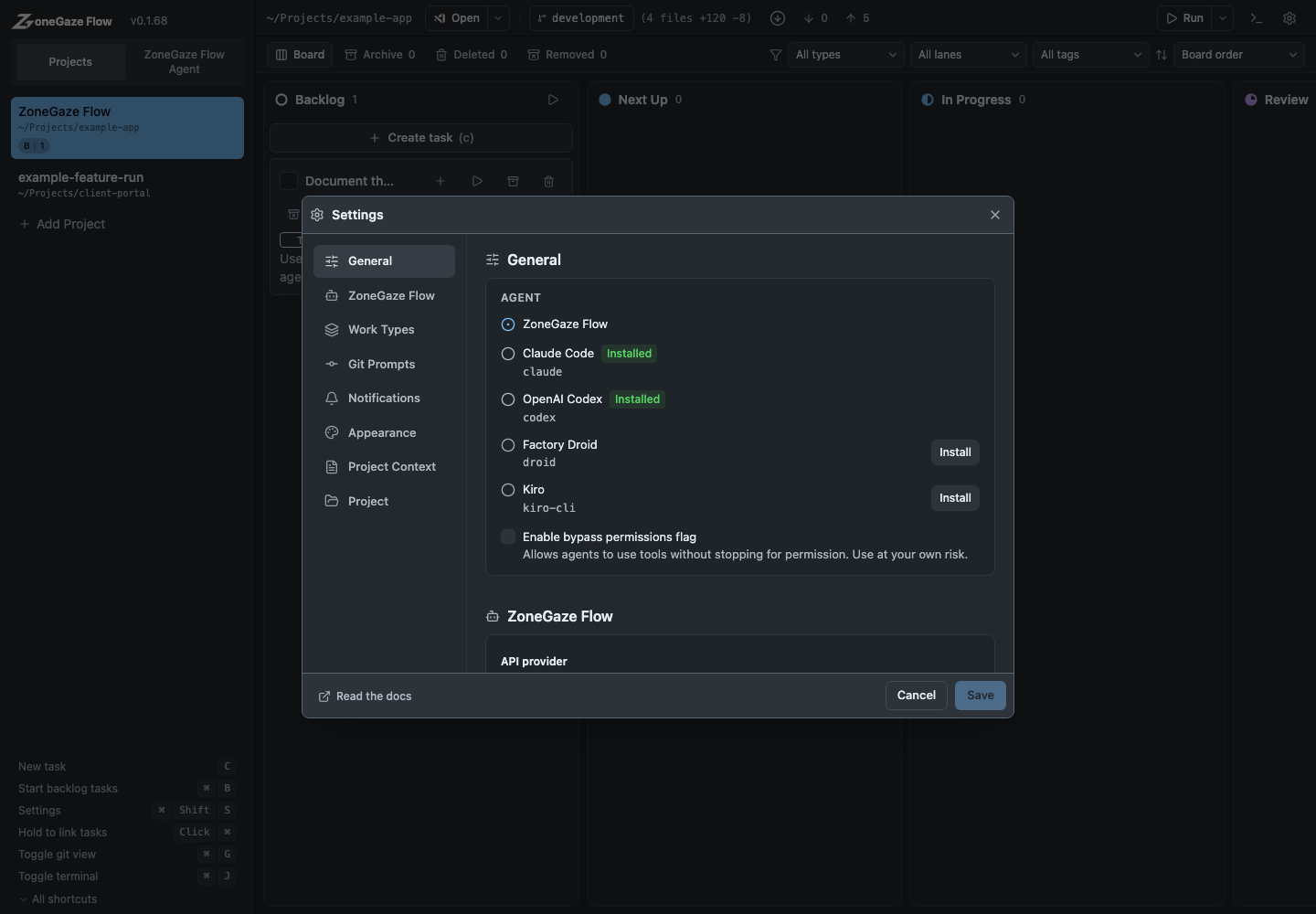
Click Settings from the top bar. The General section shows available agents and whether they are installed or need setup.
Pick A Default Agent
Choose the agent that should run new tasks by default. Installed agents are marked in the settings panel. If an agent needs installation, use its install action or install it outside Flow and refresh settings.
Supported agent surfaces may include:
- ZoneGaze Flow native agent
- Claude Code
- OpenAI Codex
- Factory Droid
- Kiro
- other CLI-backed agents exposed by the runtime
The exact list depends on your platform and local installation.
Configure Provider Details
Some agents need provider, account, or model settings. Use the relevant settings section to add the provider, select a model, and complete required authentication.
Keep secrets out of task prompts and screenshots. Use the provider setup flow or environment configuration instead of pasting API keys into tasks.
Provider And Secret Boundary
Provider setup belongs in the app settings, environment configuration, or the provider’s own authenticated CLI flow. Task prompts should describe the work, not carry credentials.
Before starting an agent, check:
- provider account or CLI login is already complete
- required environment variables are available to the runtime where appropriate
- screenshots and task prompts do not include private keys, tokens, or unrelated private data
- support packets describe missing-secret blockers without exposing the secret value
- generated logs are safe to share before attaching them to a task or support request
Plan Mode Decision
Enable plan mode when the task should start with a proposed implementation plan. This is useful for larger changes, ambiguous requirements, and work that needs explicit human approval before file edits.
Use plan mode when:
- the task touches multiple files or workflows
- the agent needs to choose between implementation options
- review or deployment boundaries are strict
- you want the agent to stop before edits and explain the approach
Use direct execution only for narrow work with clear files, clear validation, and low blast radius.
Per-Task Overrides
Open a task card and expand Override Agent Settings when a single task needs a different model, provider, or behavior from the default.
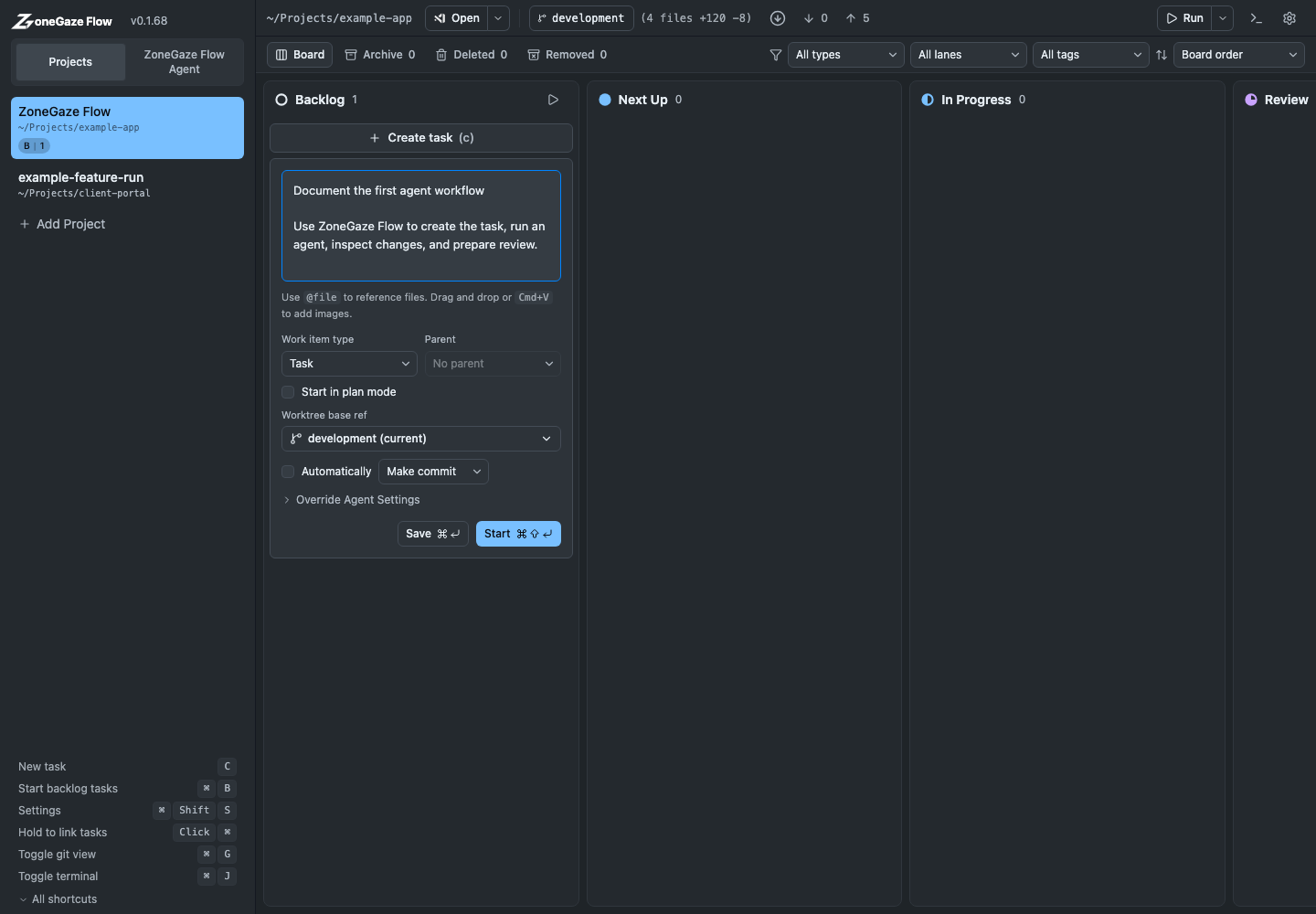
Per-task overrides are useful for:
- choosing a stronger model for riskier implementation work
- switching to a faster model for inventory or summarization
- requiring plan mode on one task while keeping the default direct
- changing review behavior for a sensitive branch or project
- matching the agent to a platform-specific task such as Android setup or web UI QA
Start Gate
Before running an important task, confirm:
- the selected agent is installed or connected
- the provider is authenticated
- the project has the expected Git state
- the base ref is correct
- the task prompt includes validation instructions
If the task cannot start, check Troubleshooting.
Next Steps
- Create a small first card with Getting started.
- Review task phases and handoff gates in Core workflow.
- Use Troubleshooting when an agent, provider, runtime, or project state blocks startup.
Leave with a concrete next action.
Each doc page should end with a command, route, verification step, screenshot, or support packet users can act on.
Do not strand the reader.
Link to the next workflow page, install guide, troubleshooting, demos, downloads, or support depending on the page topic.