ZoneGaze Flow keeps the same product workflow across surfaces: create work, launch agents, monitor evidence, review changes, and close deliberately. Each platform has different launch and runtime details.
Platform Status
| Surface | Current Status | What It Proves |
|---|---|---|
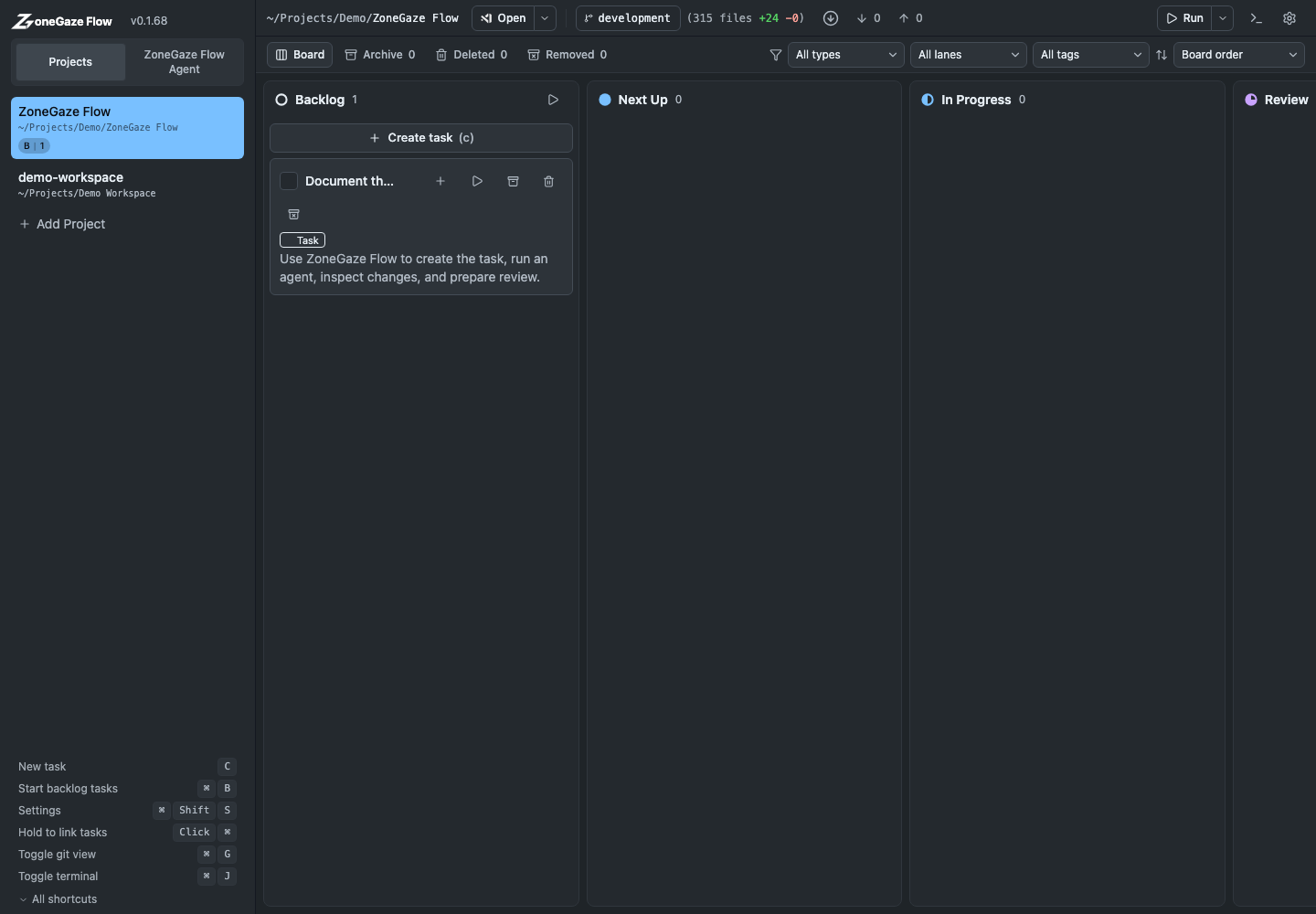
| Web control surface | Current workflow surface | Task board, task creation, terminal output, Git history, review state, and archive views are captured. |
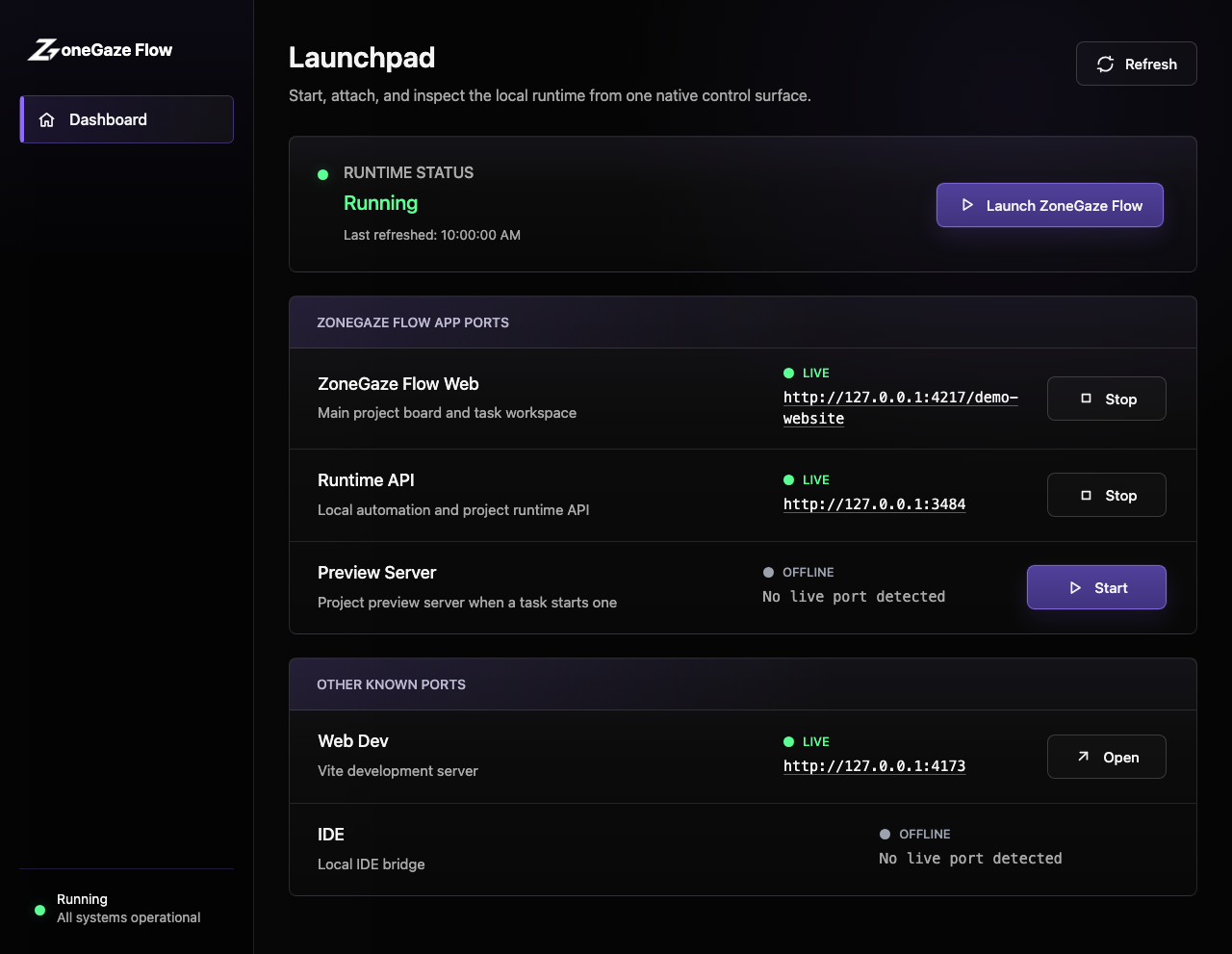
| Mac app | Direct desktop launchpad | Runtime status, launch/attach behavior, disconnected recovery, and board opening are captured from the desktop shell. |
| Android app | Captured preview path | Android 16 emulator evidence covers Termux setup, Run Command permission, runtime start on port 3484, and WebView board loading. |
| CLI | Contributor and automation path | The CLI shares runtime requirements with app launches and is useful when direct terminal control is preferred. |
Use Media status for the current evidence inventory and Install and launch for setup sequence details.
Web Control Surface
The web control surface is the main task board. It is where you create work, start agents, monitor execution, inspect review state, and archive completed tasks.
Mac
The Mac app is a native launchpad for the local runtime. It can start or attach to the runtime, show port status, and open the board.
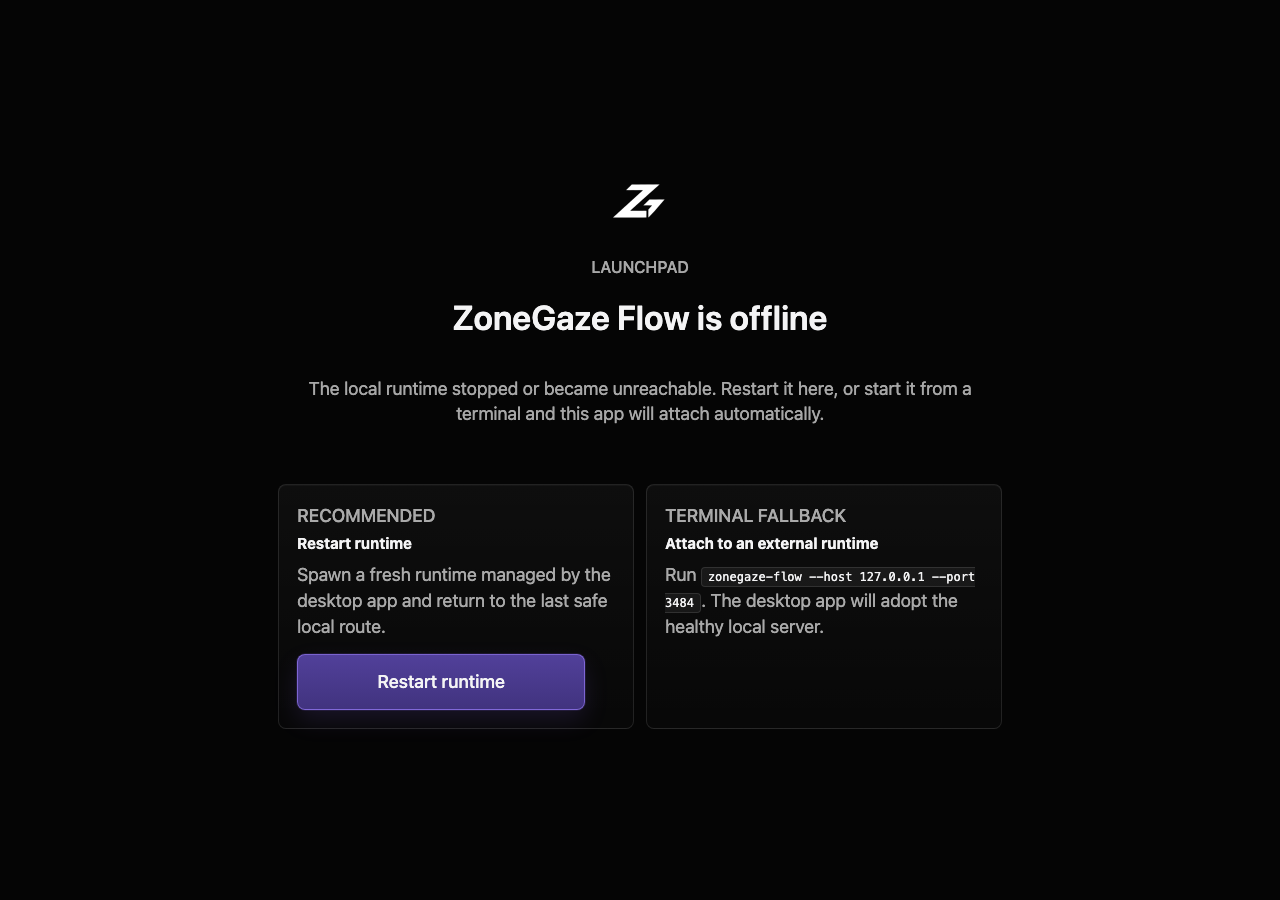
If the local runtime stops or becomes unreachable, the Mac app shows the recovery screen.
Use the Mac app when you want a desktop control surface for a local development machine.
Android
The Android app provides a native dashboard and relies on compatible Termux for the local runtime path.
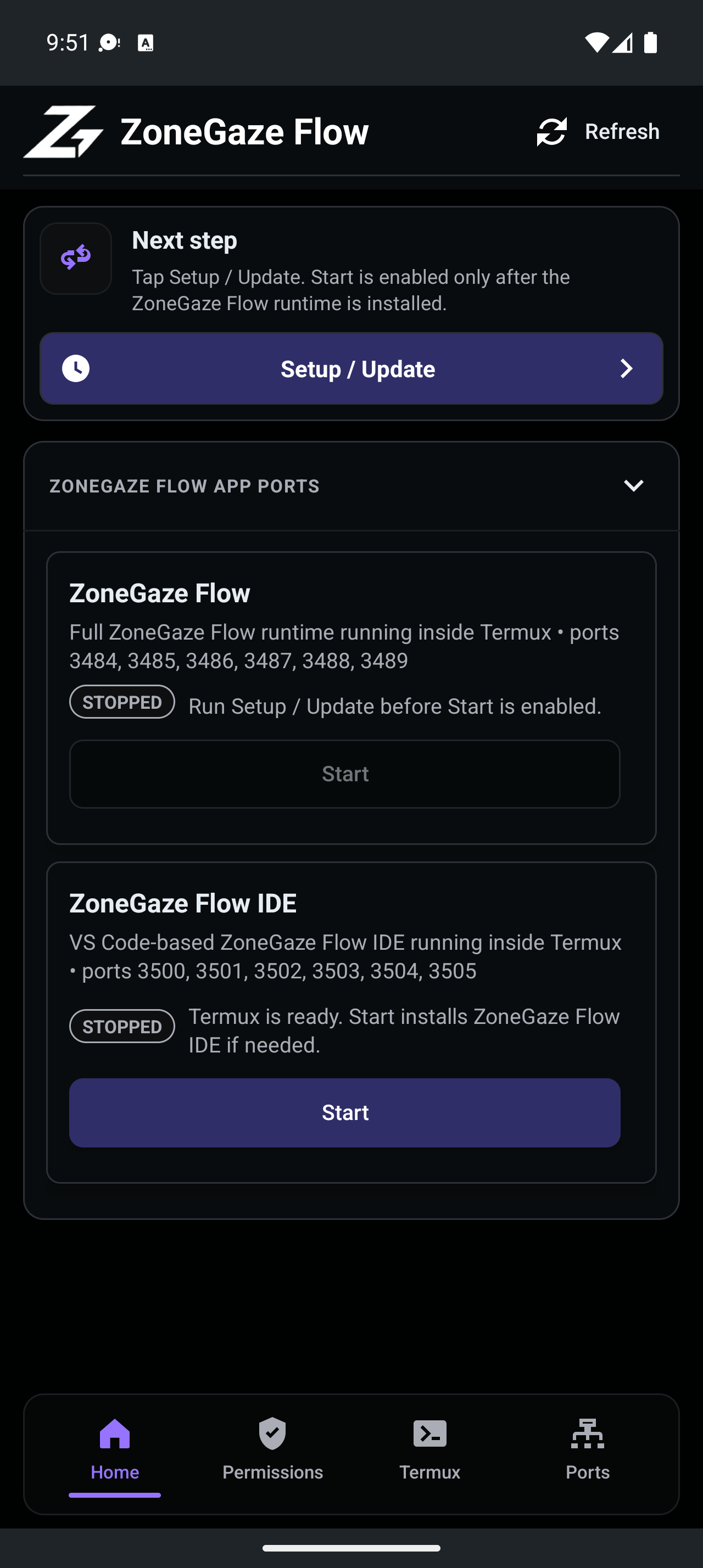
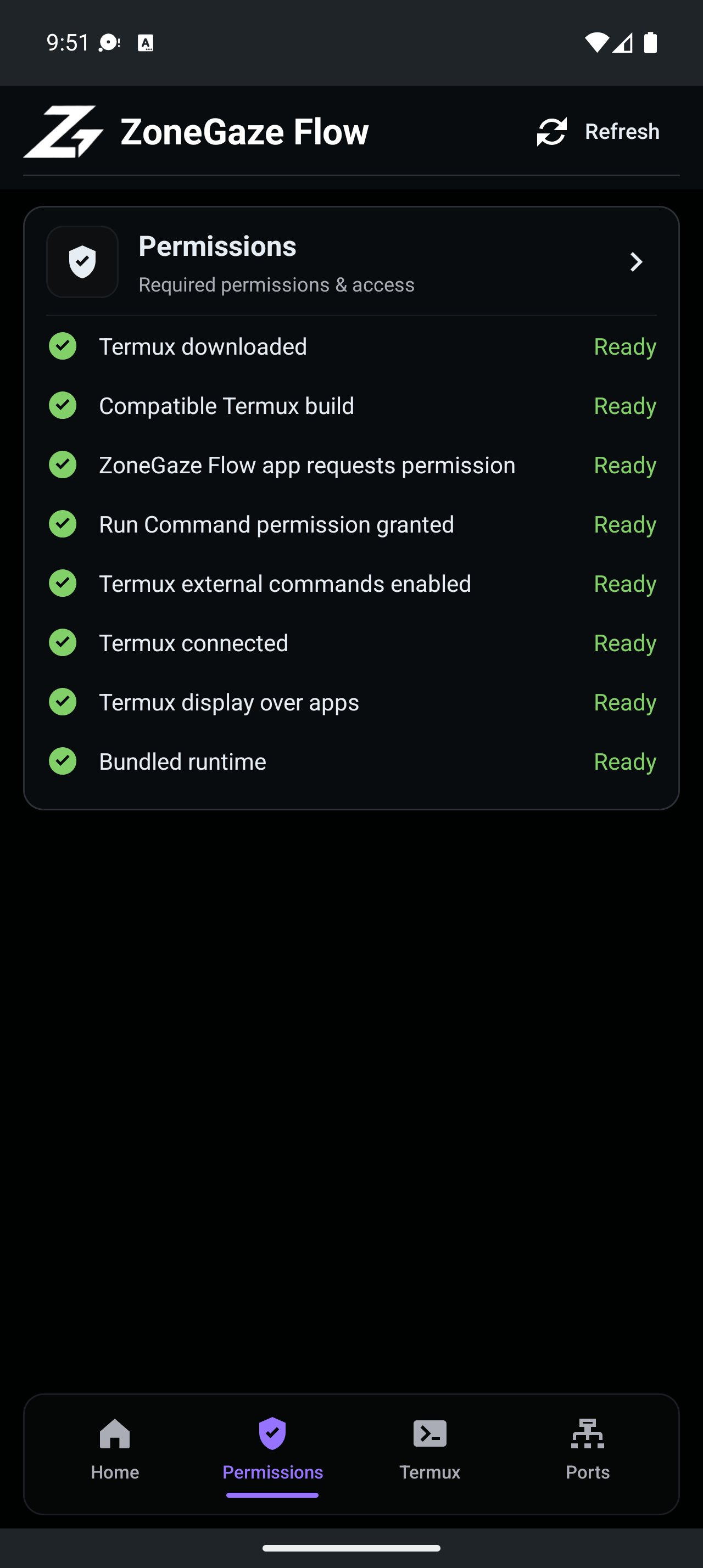
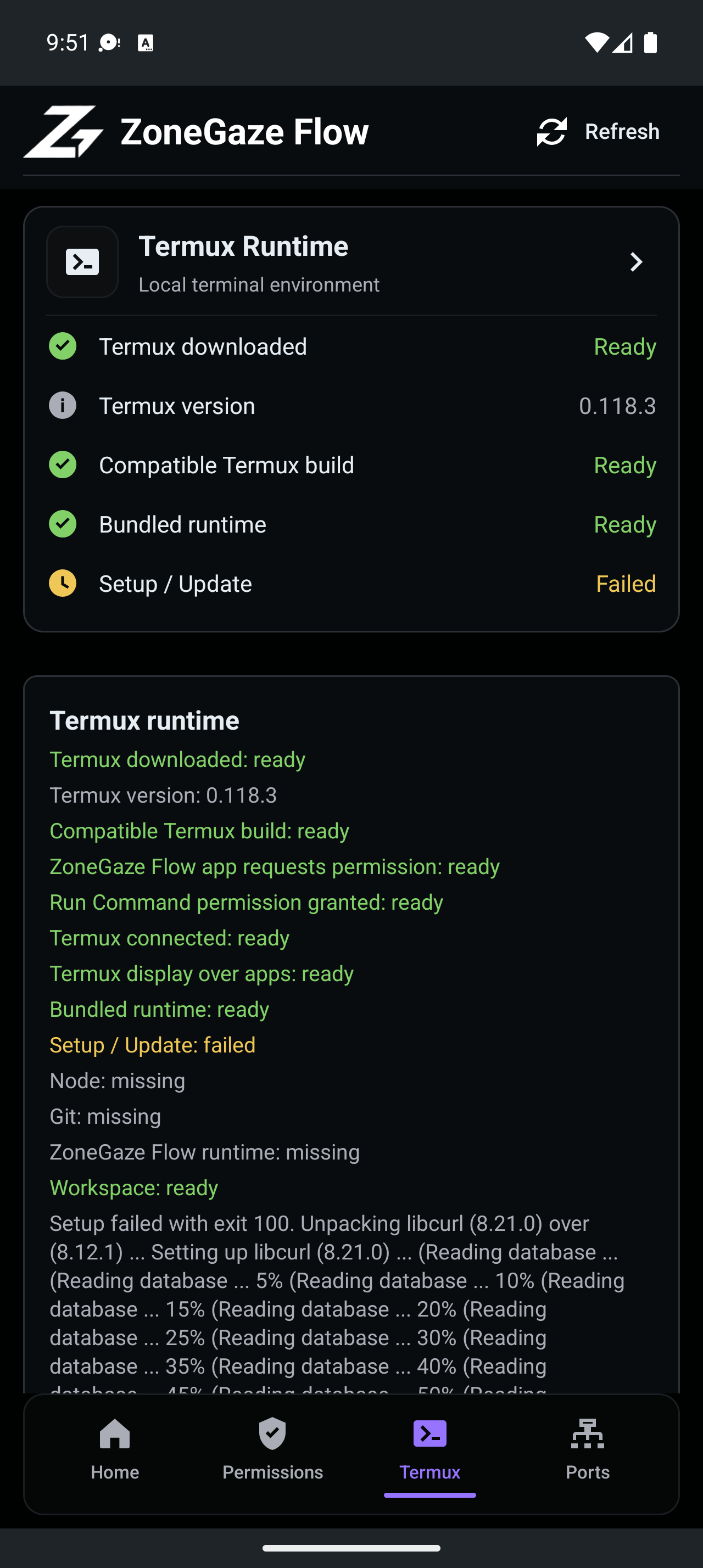
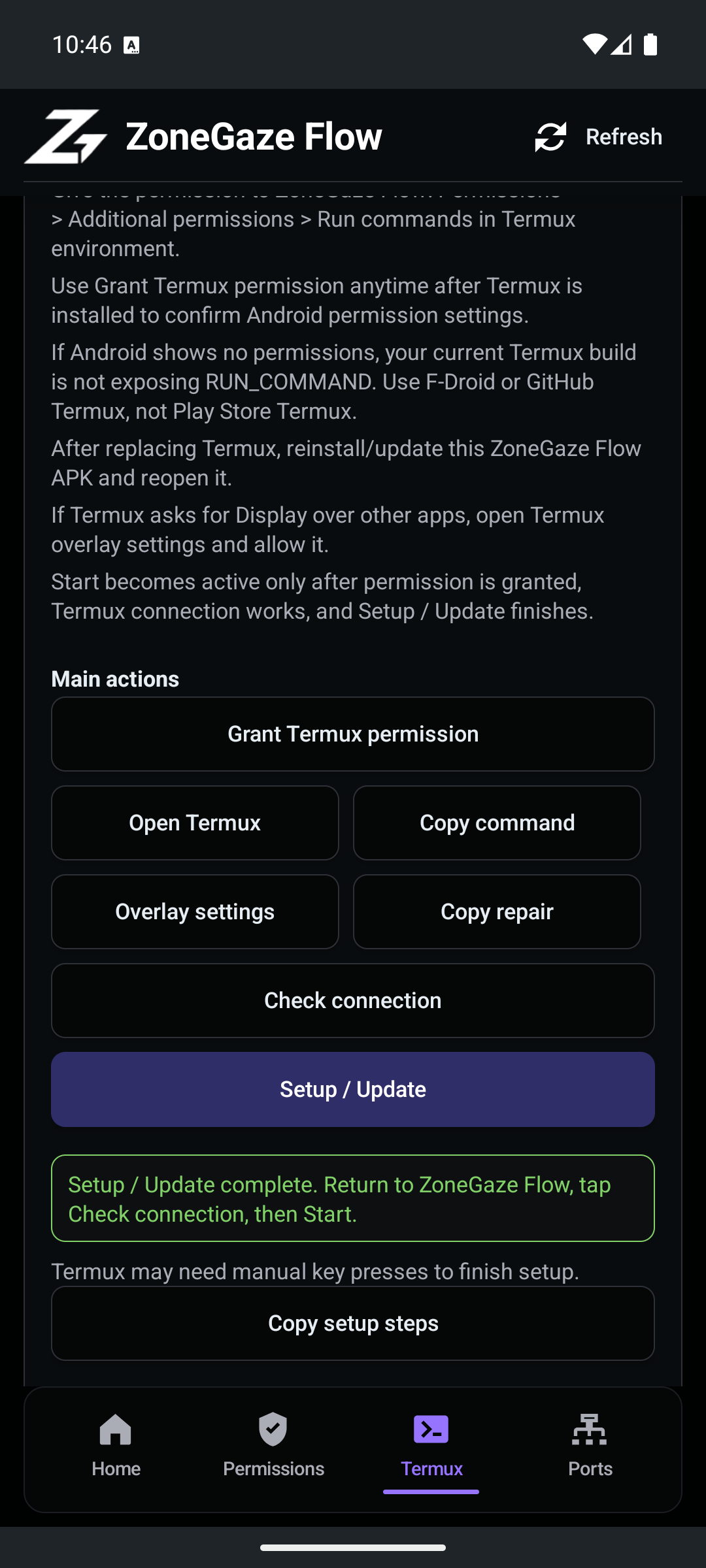
The setup dashboard checks:
- whether Termux is installed
- whether the Termux build is compatible
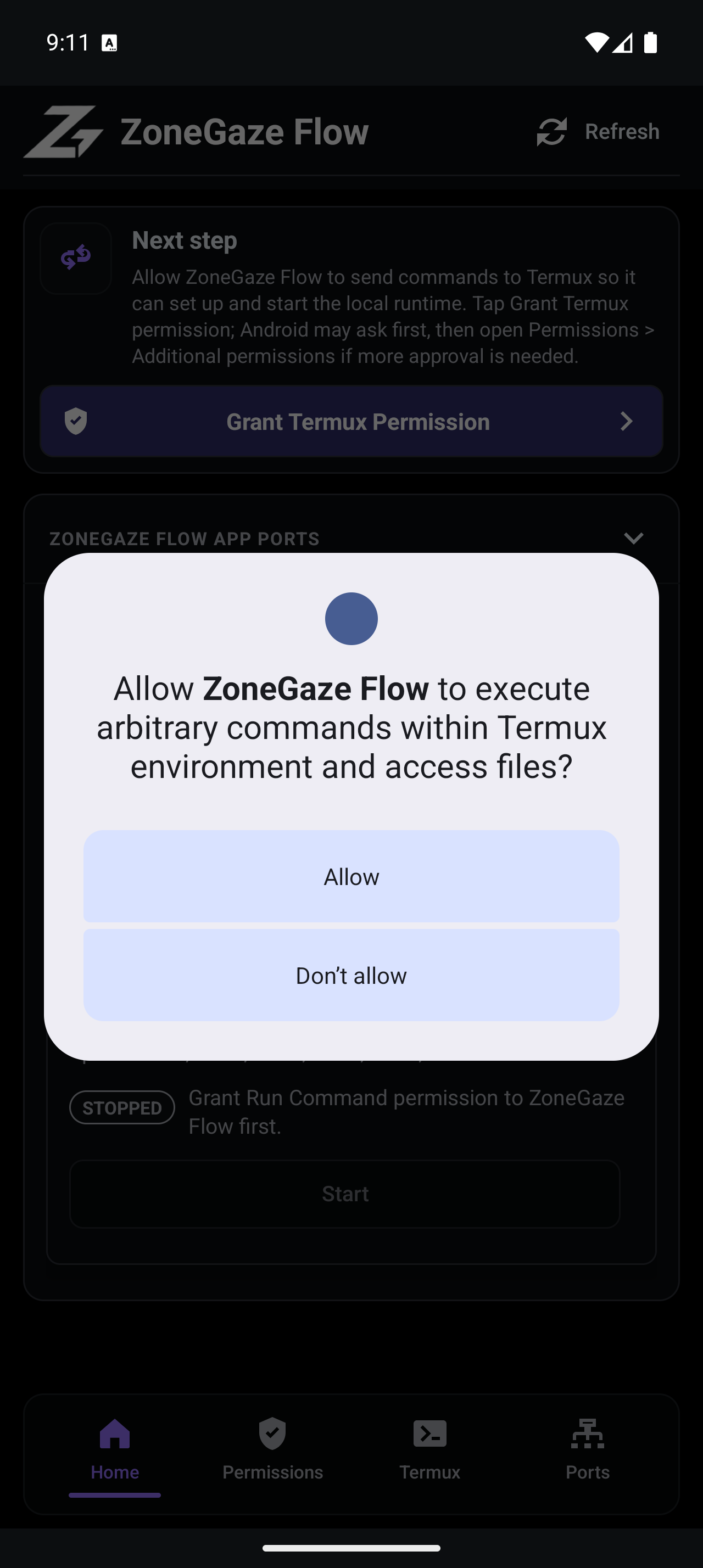
- whether Run Command permission is available
- whether the bundled runtime is ready
- whether setup/update has run
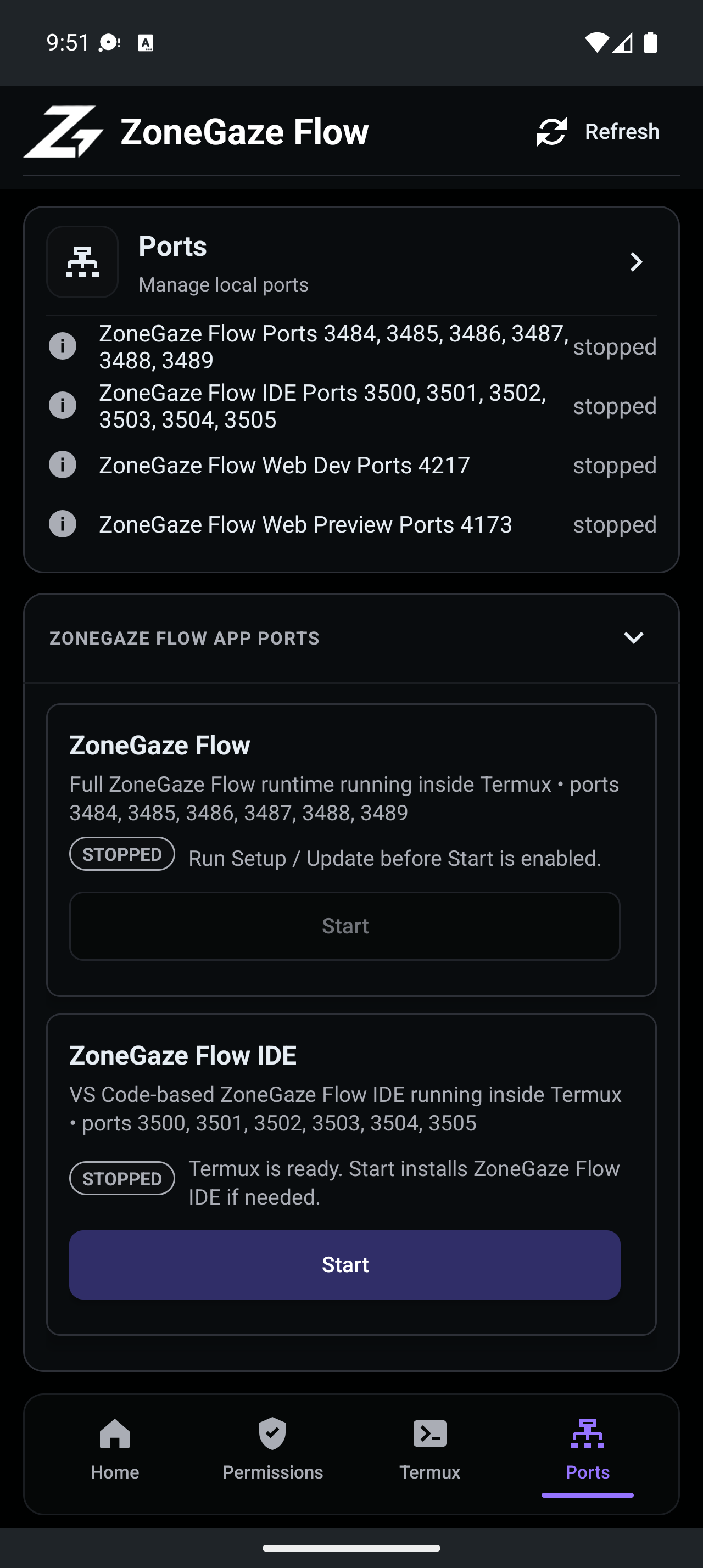
Native Android setup screens:
Watch the Android setup and runtime workflow
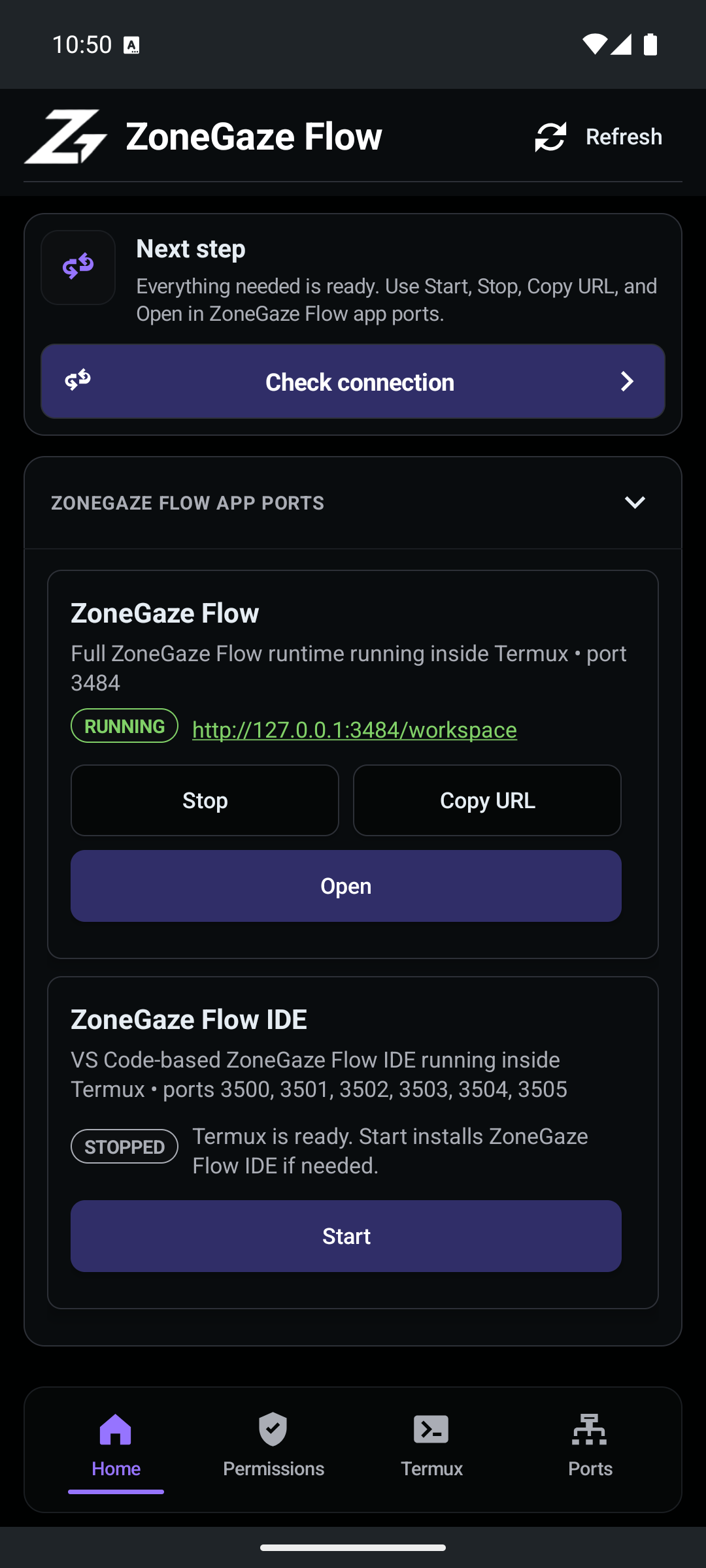
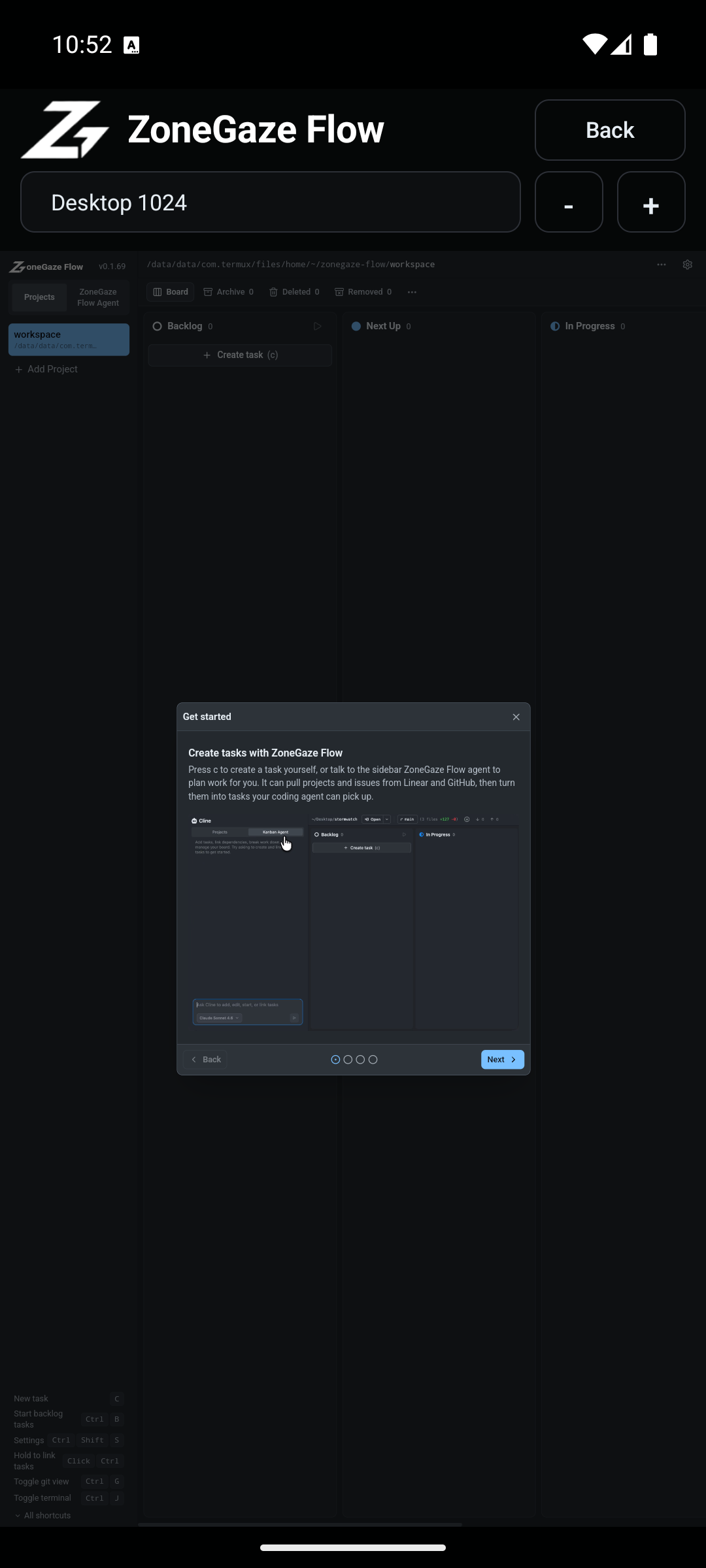
After setup completes, the Home tab shows the runtime port, Start/Open controls, and the embedded WebView board.
CLI
The CLI path is best for package users, contributors, and automation environments.
npx zonegaze-flowUse the CLI when you need direct terminal control or when you are running ZoneGaze Flow without the Mac or Android shell.
Readiness Gates
Before choosing a platform for real work, confirm:
- Web: the selected project, task card, terminal output, and Git state all point at the intended workspace.
- Mac: the launchpad shows the runtime as reachable or gives a clear recovery path.
- Android: compatible Termux is installed, Run Command permission is granted, setup/update has completed, and the board opens in WebView.
- CLI: Node.js, Git, project path, provider authentication, and agent command availability are correct in the shell where the runtime starts.
If any gate fails, use Troubleshooting before starting agent work.
Platform Boundaries
The captured Android path is preview evidence, not an app-store distribution or broad support promise. Treat Android setup as a Termux-backed local runtime path that still depends on compatible device state, storage, permissions, and app packaging.
Mac and CLI paths are better suited for normal desktop development and automation. The web control surface remains the shared review workspace across platforms, but it still depends on a reachable local runtime.
When To Use Each Surface
- Use Mac for normal desktop development.
- Use Android for mobile/local-device workflows after Termux setup is complete.
- Use CLI for automation, package testing, and contributor workflows.
- Use the web control surface for day-to-day task coordination on every platform.
Leave with a concrete next action.
Each doc page should end with a command, route, verification step, screenshot, or support packet users can act on.
Do not strand the reader.
Link to the next workflow page, install guide, troubleshooting, demos, downloads, or support depending on the page topic.