ZoneGaze Flow runs as a direct app on Mac, an Android preview path, or through the CLI for package users and contributors. The first job after install is simple: prove the local runtime is reachable before any agent work starts.
Install Readiness
Before installing or launching, confirm the environment can support a local Flow runtime:
- The project you plan to open is a local repository or workspace you can review safely.
- Git is installed for branch, diff, worktree, and review features.
- Node.js 22 or newer is available when using the CLI/runtime path.
- At least one supported coding agent is installed or configured.
- Android installs have a compatible Termux build and Run Command permission available.
- You know which local URL, app launchpad, or WebView should prove the runtime started.
Mac App
The Mac app is the primary desktop path. It provides a native launchpad for starting, attaching to, and inspecting the local runtime.
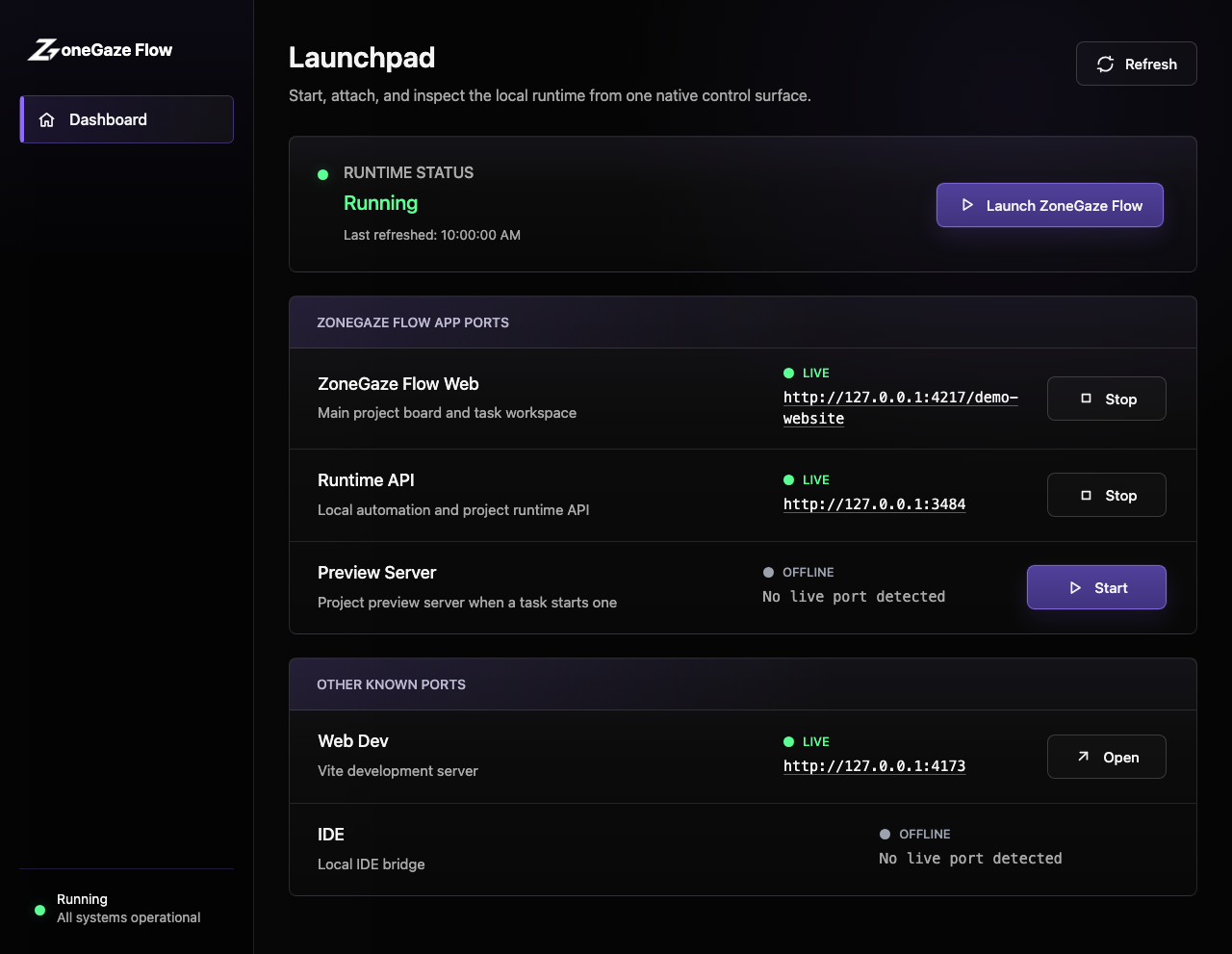
Typical Mac flow:
- Install and open ZoneGaze Flow.
- Use the launchpad to start or attach to the runtime.
- Open the web control surface from the launchpad.
- Add or select a project.
- Configure an agent if prompted.
Mac launch is ready when the launchpad shows the runtime as reachable and the board opens without recovery prompts.
Android App
The Android app provides a native setup dashboard and uses compatible Termux for the local runtime path.
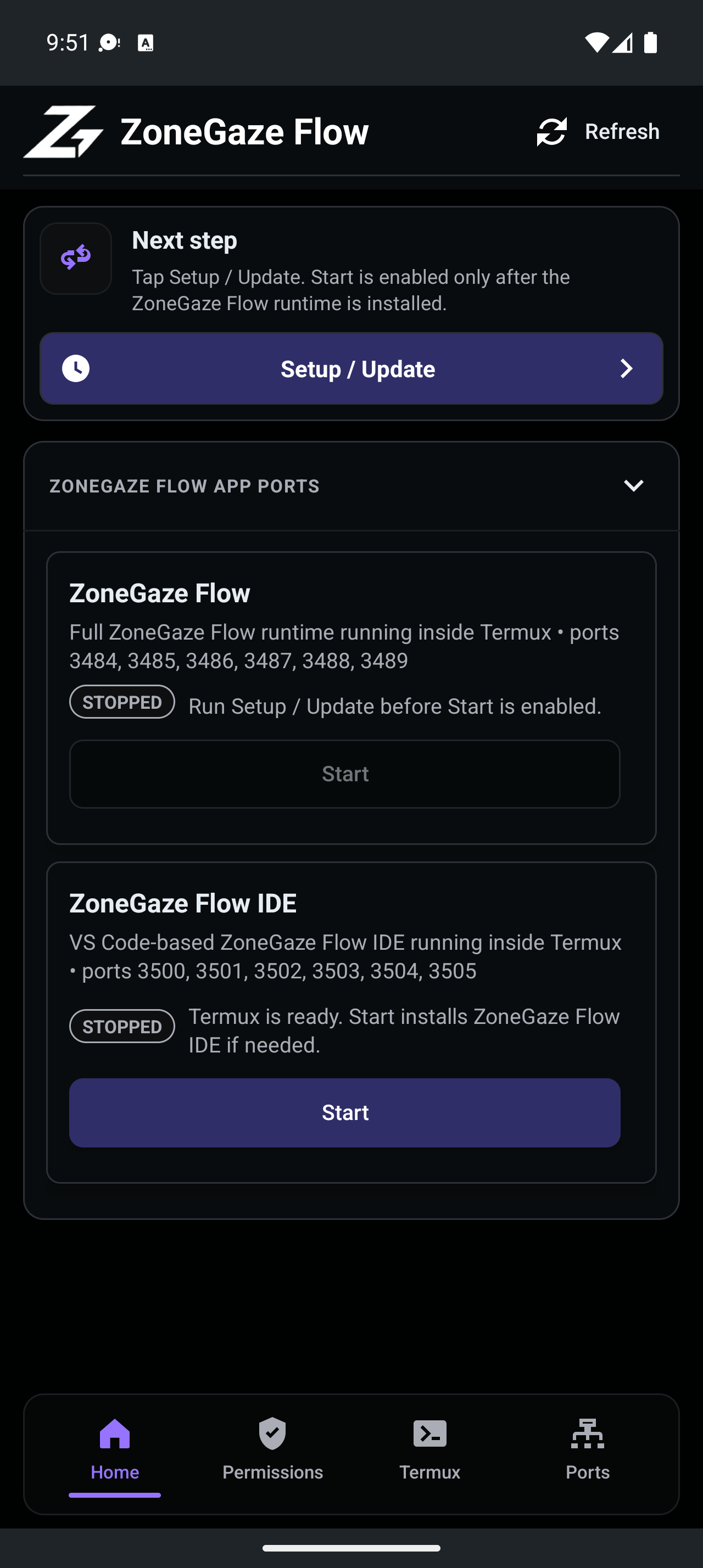
Typical Android flow:
- Install the ZoneGaze Flow APK.
- Install a compatible Termux build.
- Grant Run Command permission when prompted.
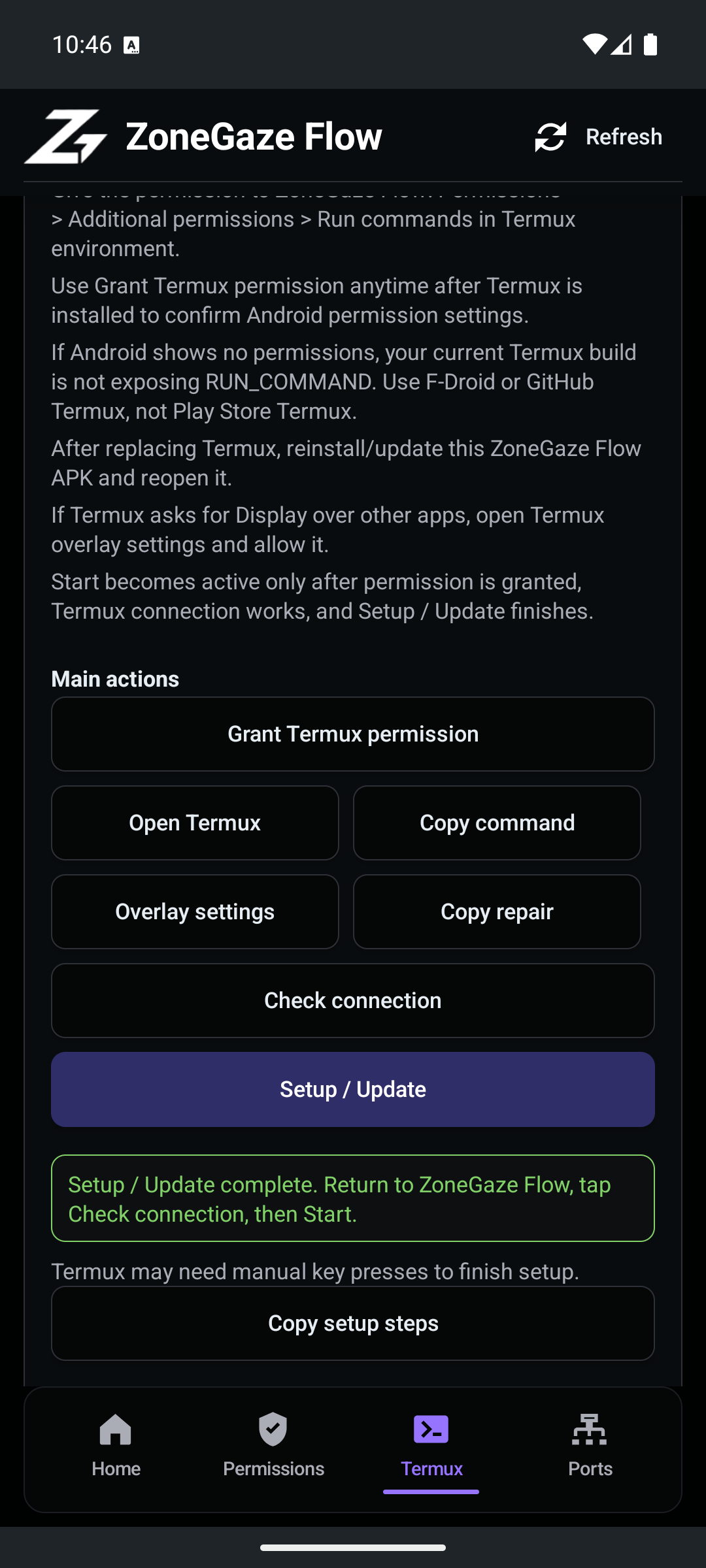
- Run the setup/update flow.
- Open the ZoneGaze Flow WebView after the runtime is ready.
The Android setup requires the native permission step before Termux can run the app-guided commands.
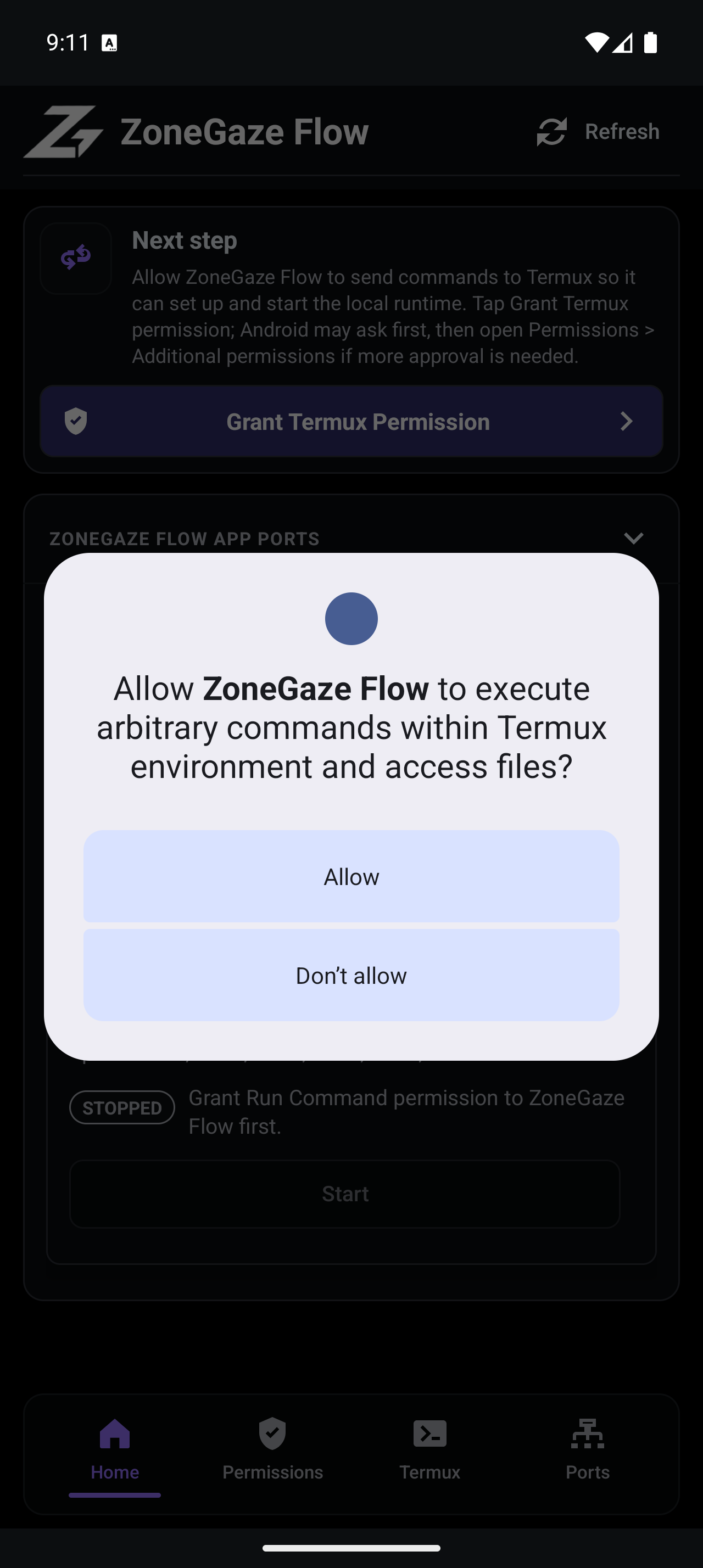
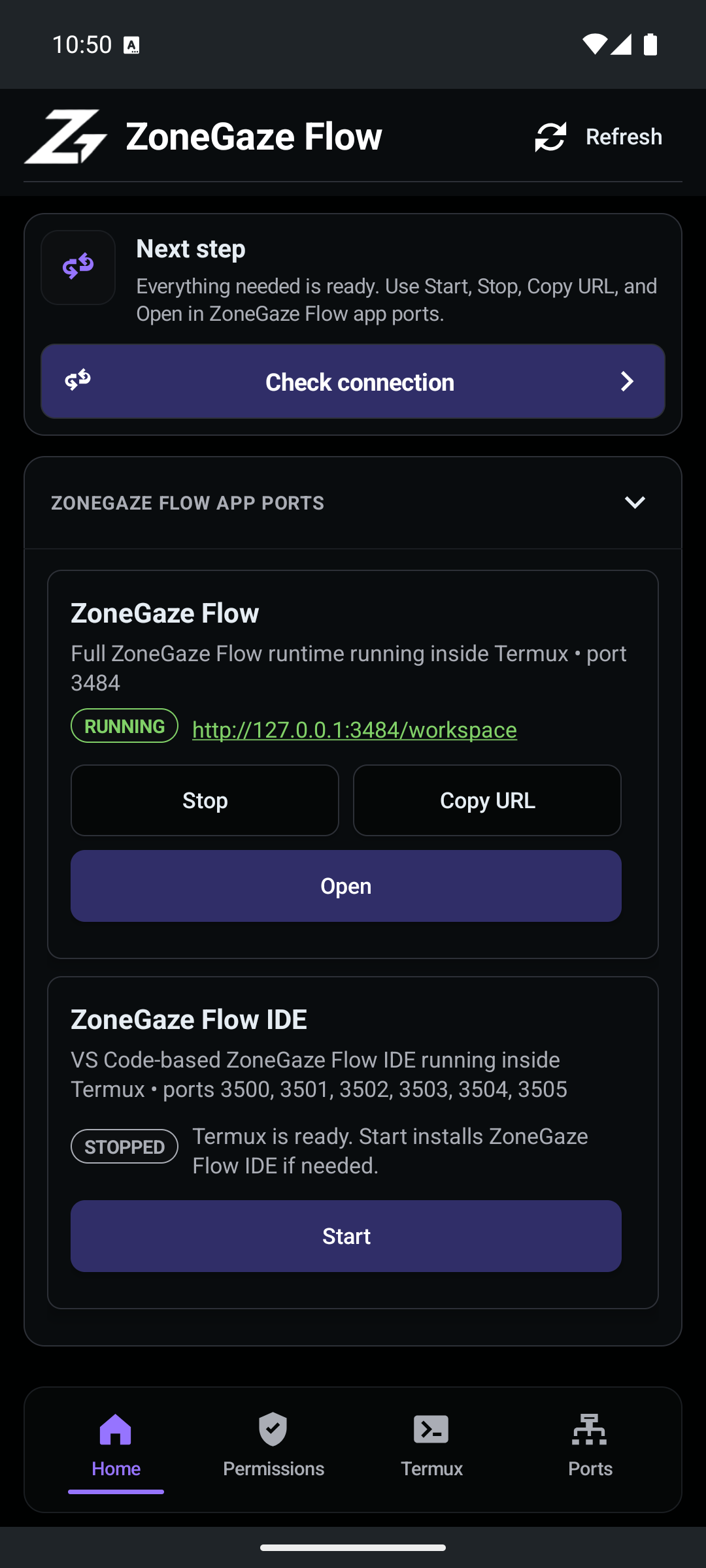
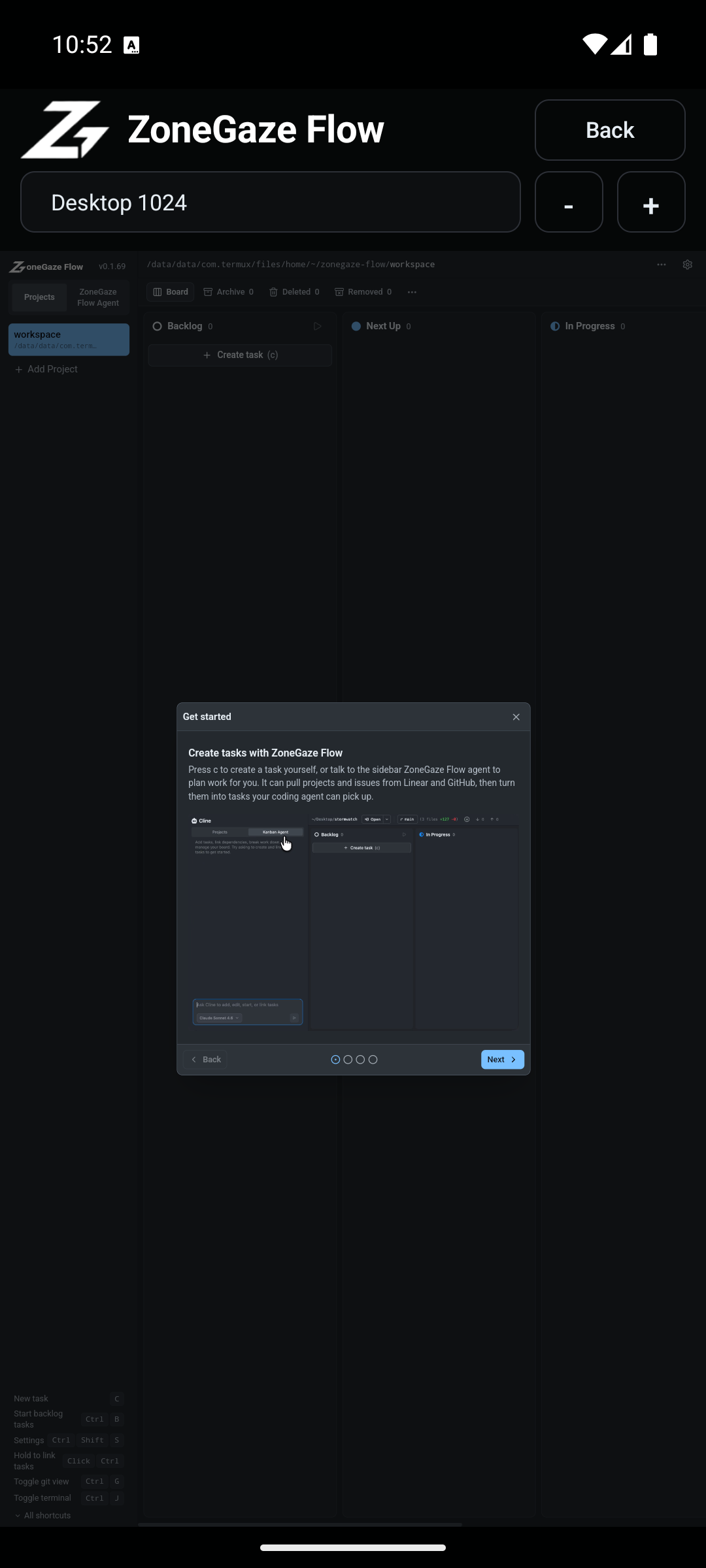
Current Android media shows the native Home, Permissions, Termux, Ports, setup-complete, runtime-running, and WebView board states.
Watch the Android setup and runtime workflow
CLI
The CLI path is useful for package users, contributors, and automation environments.
npx zonegaze-flowor:
npm install -g zonegaze-flow
zonegaze-flow
After launch, open the local URL shown by the command or by the desktop launchpad.
Requirements
- Node.js 22 or newer for the CLI/runtime path.
- Git for worktree, branch, diff, and review features.
- At least one supported coding agent installed or configured.
- For Android, a compatible Termux installation with Run Command permission.
Platform Evidence
The current website media supports these install and launch paths:
| Platform | Evidence | What It Proves |
|---|---|---|
| Mac | launchpad screenshot and runtime video | The desktop shell can show runtime status and open the local board. |
| Android | Home, permission, Termux, setup-complete, runtime-running, and WebView screenshots | The Android 16 emulator path can complete setup, start the runtime on port 3484, and load the board. |
| CLI | command examples and shared runtime requirements | Package users and contributors can start from the terminal when runtime dependencies are present. |
For the full evidence inventory, read Media status.
Launch Verification
After installation, verify launch before starting agent work:
- Open the board from the Mac launchpad, Android WebView, or CLI URL.
- Confirm the selected project is the intended local workspace.
- Check that runtime status is reachable and not stuck in a disconnected state.
- Open Settings and confirm the agent you plan to use is configured.
- Create only a small first task, then use Getting started for the first reviewed loop.
If launch, setup, Termux, project, agent, or Git state does not look right, use Troubleshooting before continuing.
Install Routes
- Platform notes for Mac, Android, web, and CLI behavior.
- Troubleshooting for blocked launch, runtime, Termux, terminal, and Git states.
- Media status for what the current screenshots and videos prove.
- Support for install, setup, runtime, or Android preview questions.
After Install
Continue with Getting started.
Leave with a concrete next action.
Each doc page should end with a command, route, verification step, screenshot, or support packet users can act on.
Do not strand the reader.
Link to the next workflow page, install guide, troubleshooting, demos, downloads, or support depending on the page topic.