The Flow workflow turns agent activity into visible work: input, execution, review, and result. Every phase is designed to keep speed and accountability together.
Workflow Phases
ZoneGaze Flow is strongest when each task has a visible path from intent to review. Think about the board in four phases:
- Shape the work: choose the project, task type, prompt, agent, and base ref.
- Start with control: confirm the task detail view before launching an agent.
- Monitor evidence: watch status, terminal output, file activity, and Git state while the task runs.
- Review and close: inspect the diff, validation, and remaining risks before moving work to Done or Archive.
1. Add Or Select A Project
Projects represent local repositories or workspaces. Use the sidebar to switch projects, add another project, or open the active project in your editor.
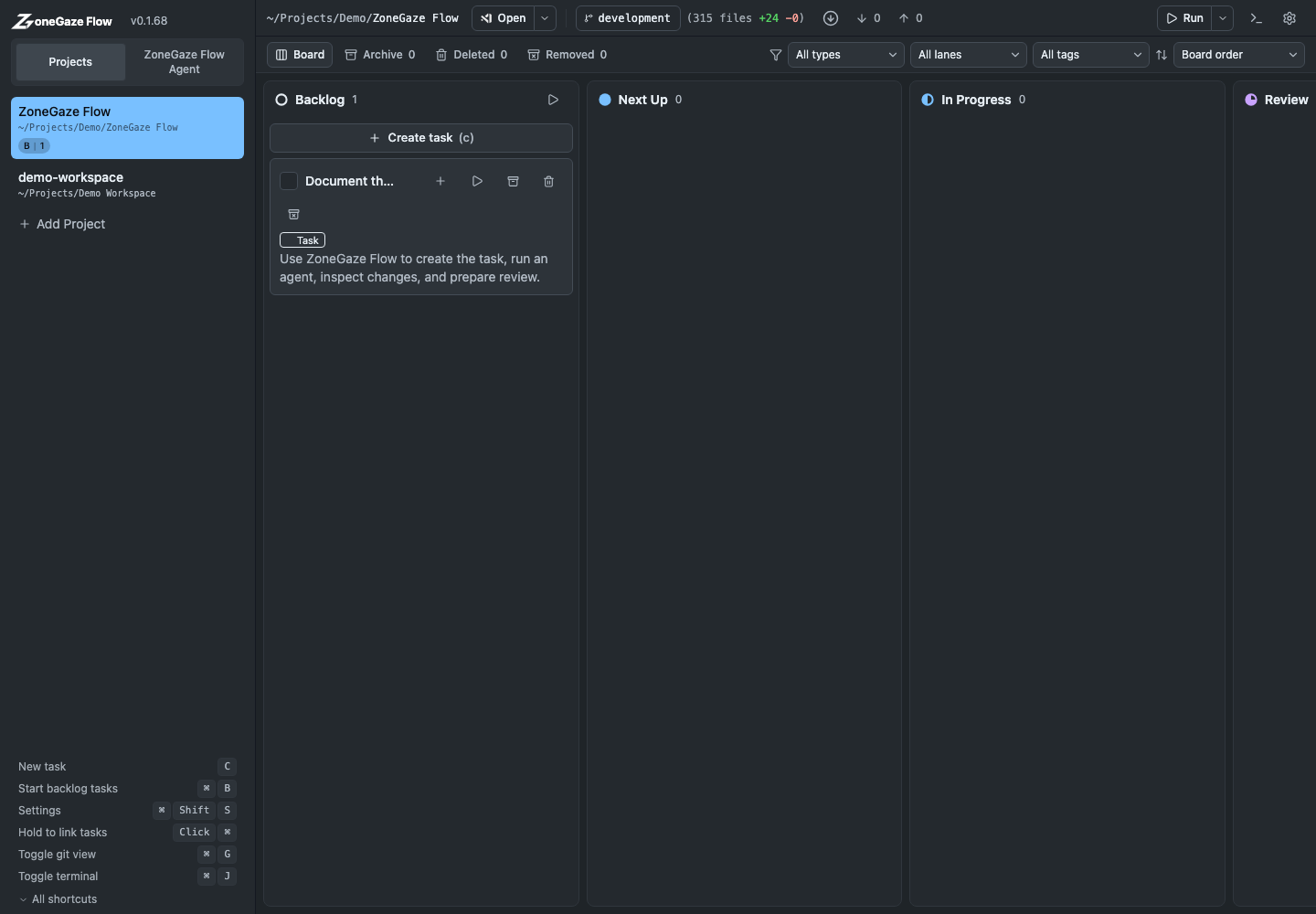
2. Create Work
Create a work item from Backlog or another planning column. The prompt should tell the agent exactly what to change and how the result should be verified.
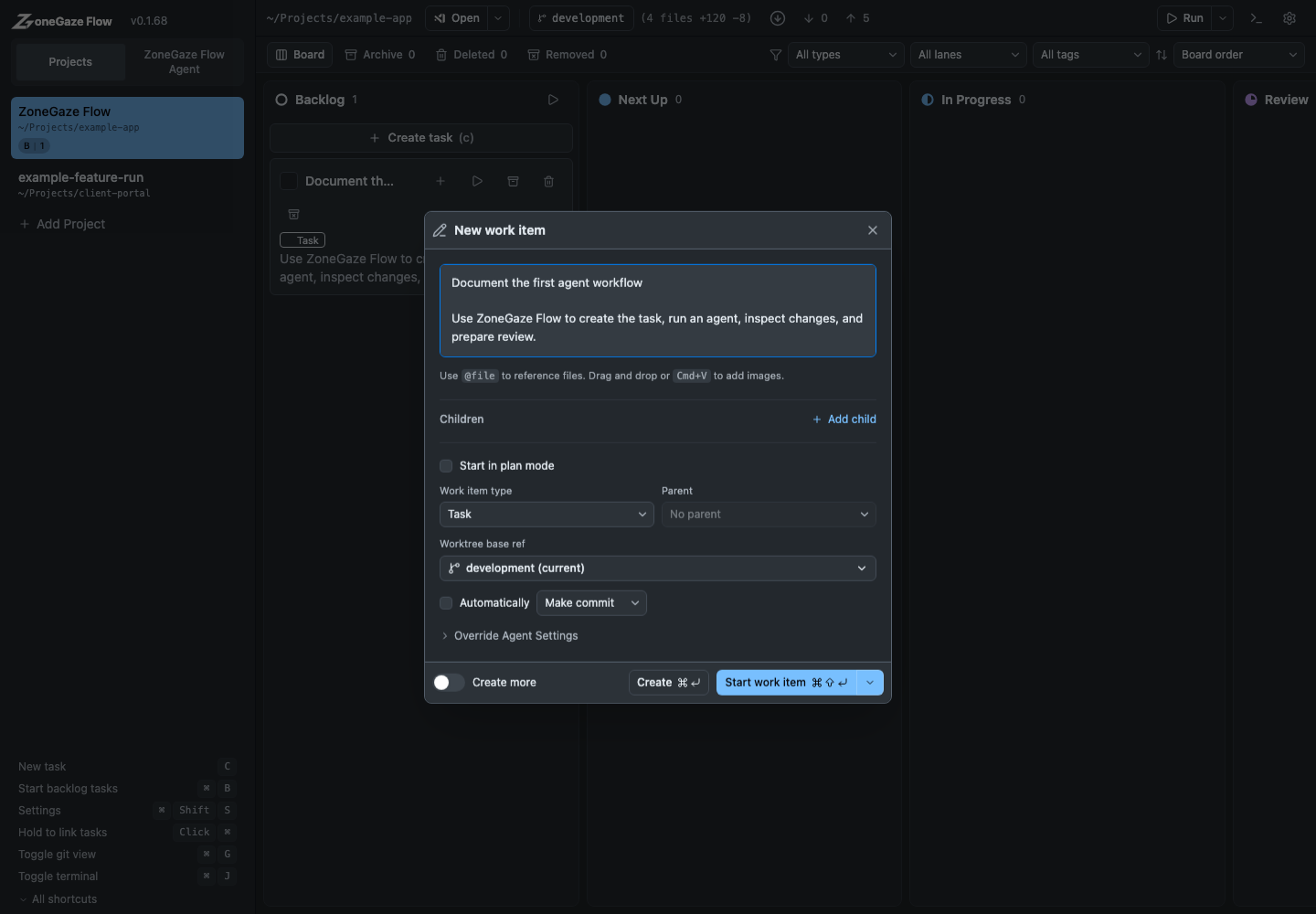
Work items can carry:
- prompt text
- work type
- parent task
- base branch or ref
- agent choice
- plan mode preference
- automatic review preference
- image attachments and file references
Handoff Gates
Before a work item moves from planning to execution, confirm:
- the prompt describes one intended outcome
- the work type matches the size of the job
- the base branch or ref is the one you expect
- plan mode is enabled when you want a written approach first
- review behavior matches the risk of the task
3. Choose Work Type
Use work types to express the shape of work:
- Epic for large coordinating outcomes.
- Story for user-facing slices.
- Task for ordinary implementation work.
- Subtask for small child work.
Coordinator-style work can produce or organize child tasks. Executable work is intended to be run by an agent.
4. Start The Task
Open the task detail view and confirm the settings before you start.
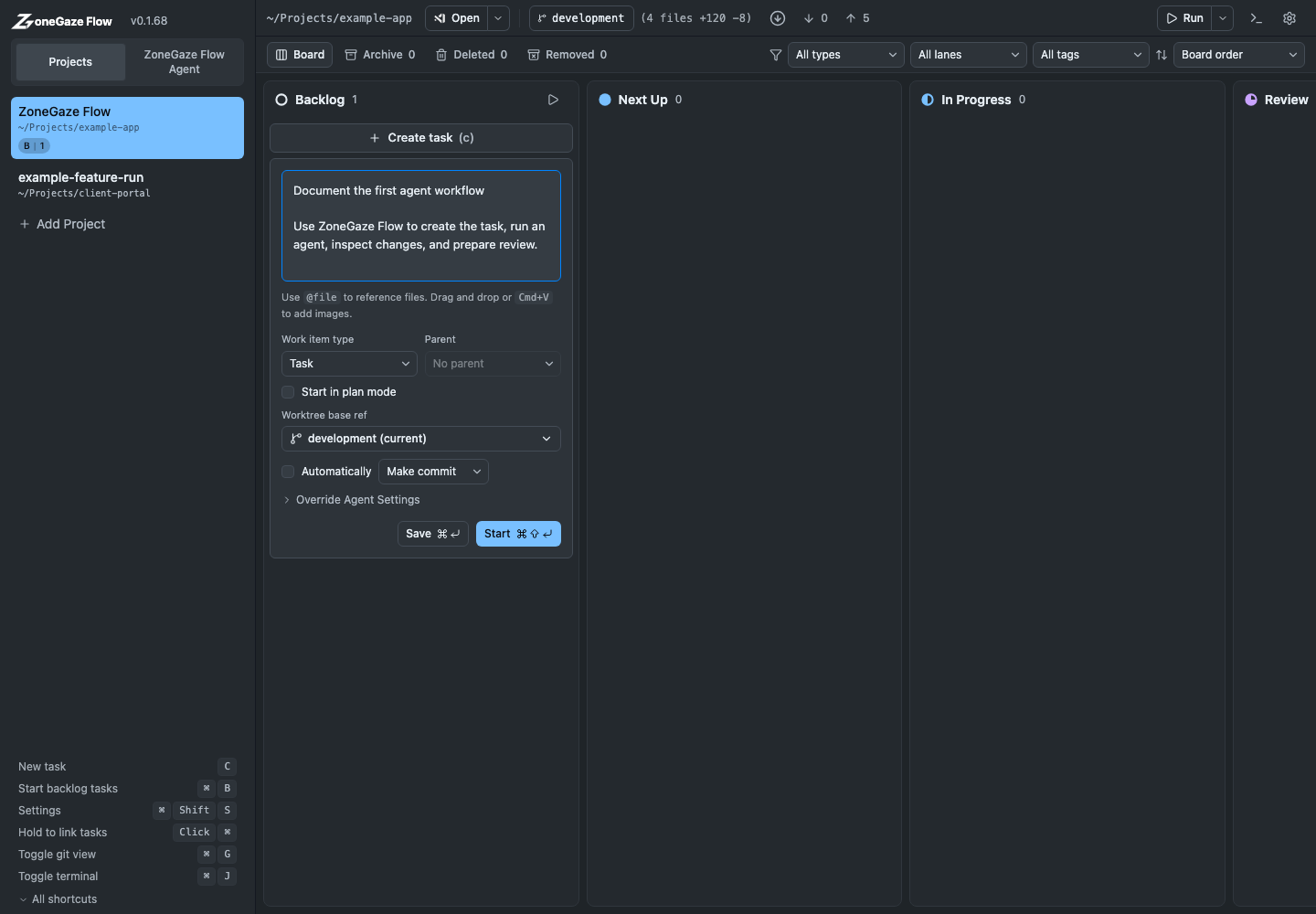
When you start a task, ZoneGaze Flow prepares the workspace and launches the selected agent. Depending on the agent and project state, it can use an isolated worktree so the task does not overwrite the main checkout.
5. Monitor Progress
Use the card, task detail, or terminal panel to monitor work.
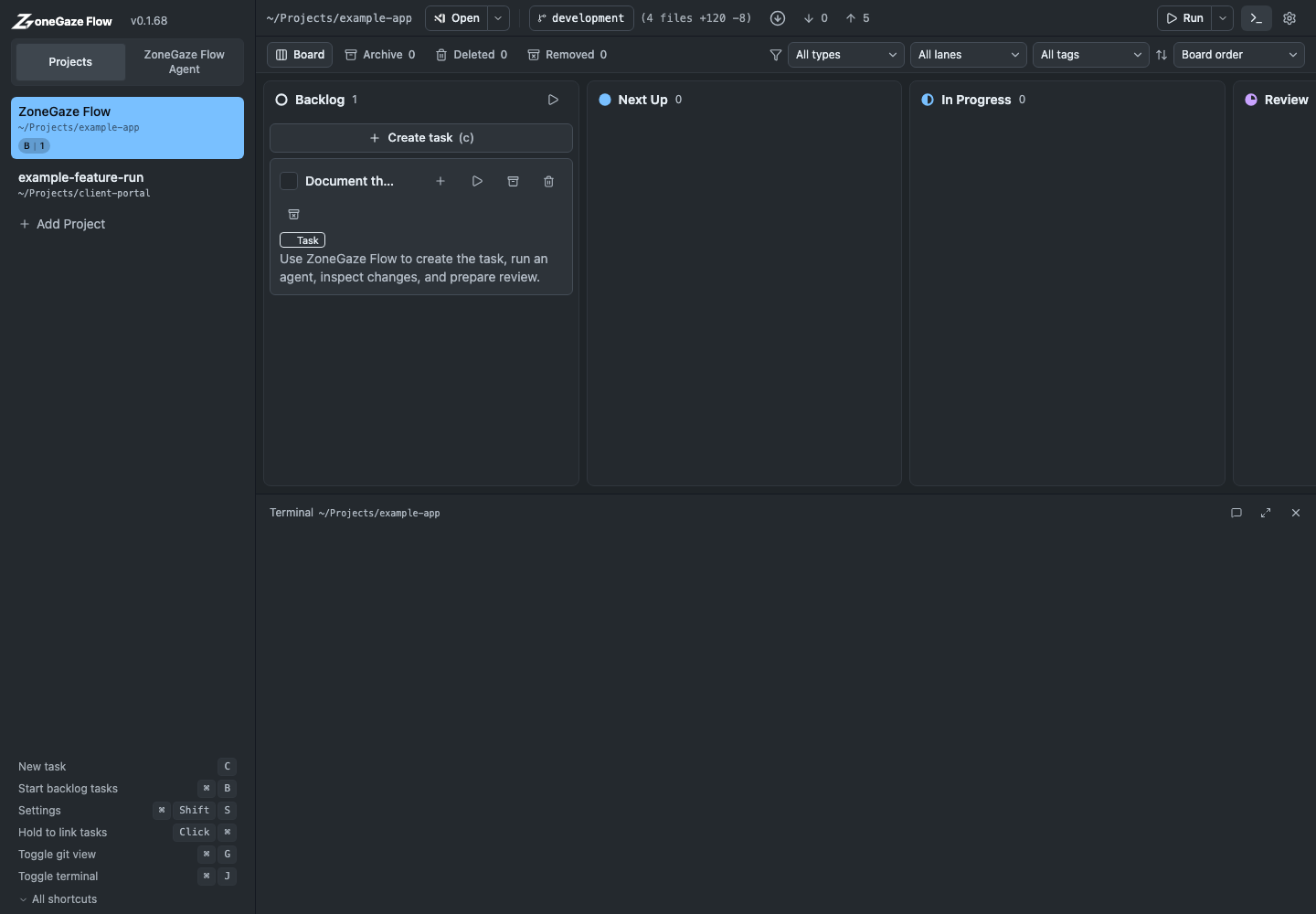
The terminal panel is useful for long-running commands, CLI agents, and workspace inspection. Treat terminal output as operational evidence, not final proof by itself.
Monitoring Evidence
During execution, look for evidence that the task is still aligned:
- status changes match what the agent is doing
- terminal output comes from the selected project
- file reads and edits match the prompt
- failing commands are explained before code changes continue
- validation appears before the task is presented as complete
6. Use Git History
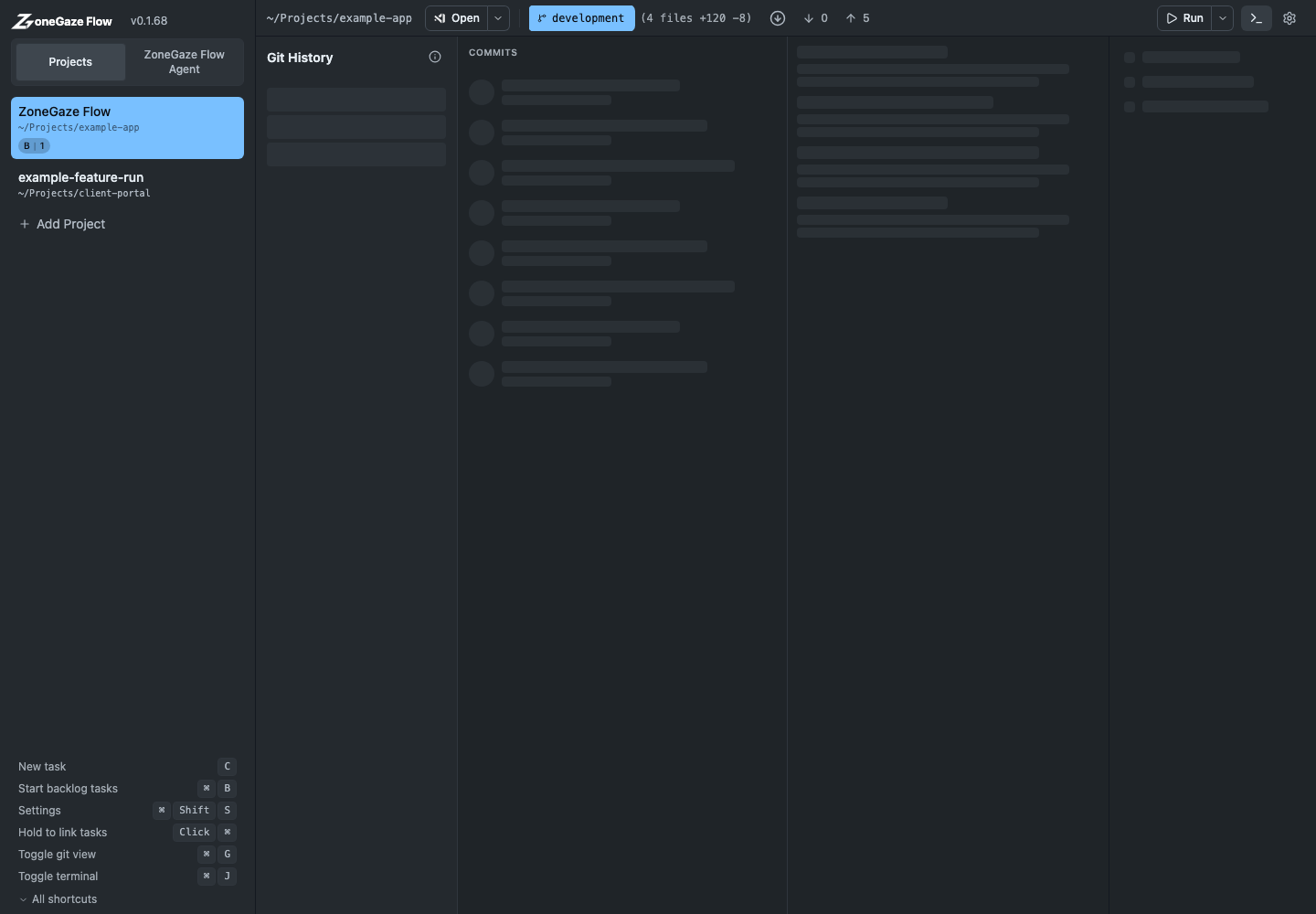
The Git history view helps you inspect commits, branch state, and working-copy changes without leaving Flow.
Git And Review Boundary
Git history is a review surface, not a replacement for review. Before accepting work, inspect:
- changed files and generated artifacts
- branch and worktree state
- commits or unstaged changes created by the task
- validation output and any skipped checks
- whether the task should move to Done, stay active, or become a follow-up
7. Archive Finished Work
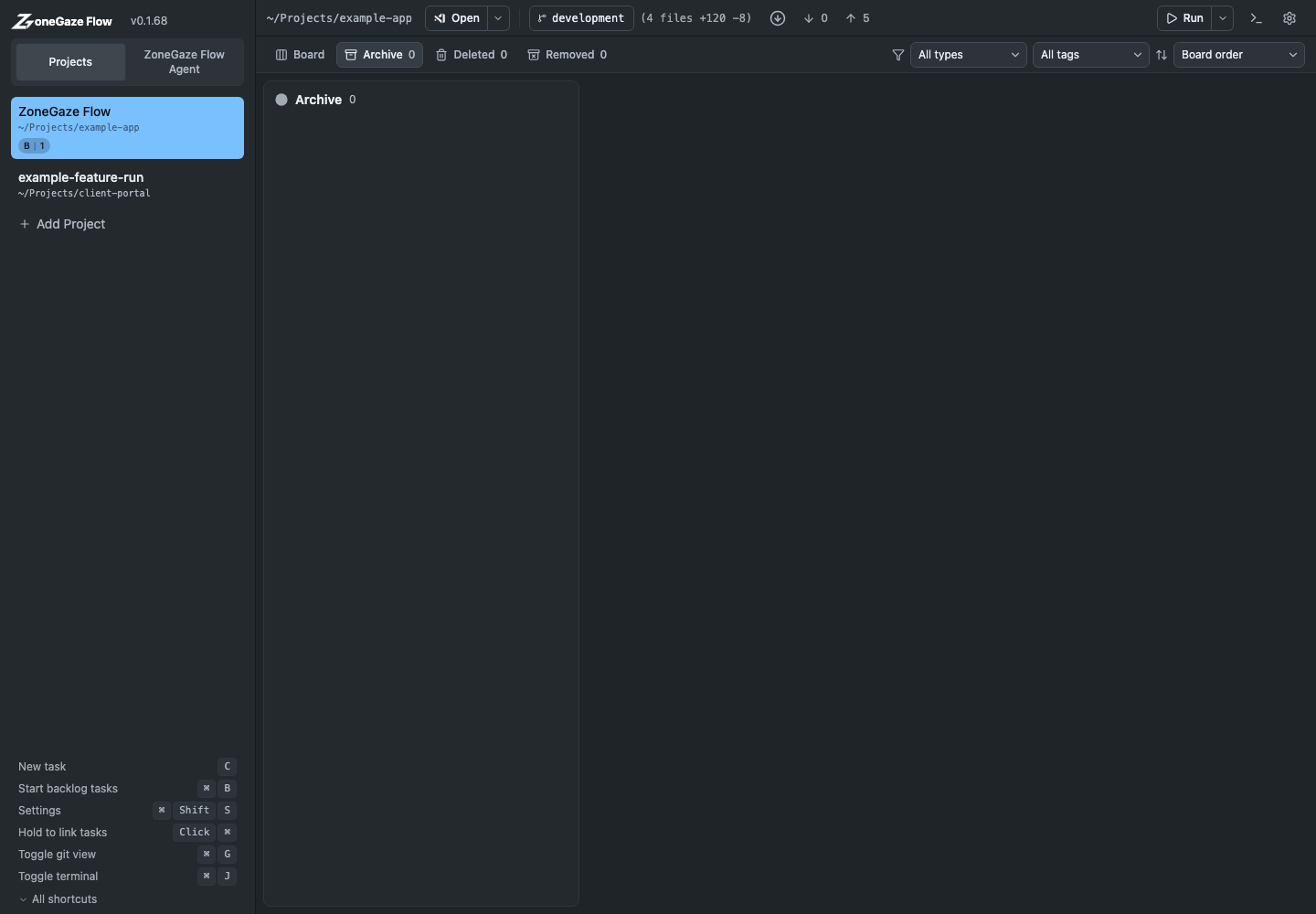
After a task is complete and no longer needs active attention, move it to Done or archive it.
Workflow Video
Watch the first-task walkthrough
Next Steps
- Configure agents in Agent setup.
- Learn the review flow in Review and ship.
Leave with a concrete next action.
Each doc page should end with a command, route, verification step, screenshot, or support packet users can act on.
Do not strand the reader.
Link to the next workflow page, install guide, troubleshooting, demos, downloads, or support depending on the page topic.