Use this page when ZoneGaze Flow does not launch, cannot start an agent, or does not show the expected project state. The fastest recovery path is to isolate the layer that is failing before changing credentials, files, or platform setup.
Triage Order
Start with the smallest observable layer before changing setup:
- Confirm the app or CLI is pointing at the expected local runtime URL.
- Check whether the runtime is reachable from the Mac launchpad, Android Home tab, or CLI output.
- Confirm the selected project path and Git state are the workspace you meant to use.
- Check agent setup only after the runtime and project are correct.
- Capture the exact error, terminal output, platform, and app version before asking for support.
This order prevents unnecessary changes to agent credentials, project files, or Android setup when the issue is only a stale page, stopped runtime, blocked port, or wrong workspace.
The Board Does Not Load
Try:
- Refresh the page.
- Confirm the local runtime is running.
- Open the Mac launchpad or CLI output and check the runtime URL.
- Confirm the port is not occupied by another process.
- Restart the runtime.
Use the local URL shown by CLI output or the desktop launchpad.
Runtime Recovery
In the Mac launchpad, check Runtime Status.
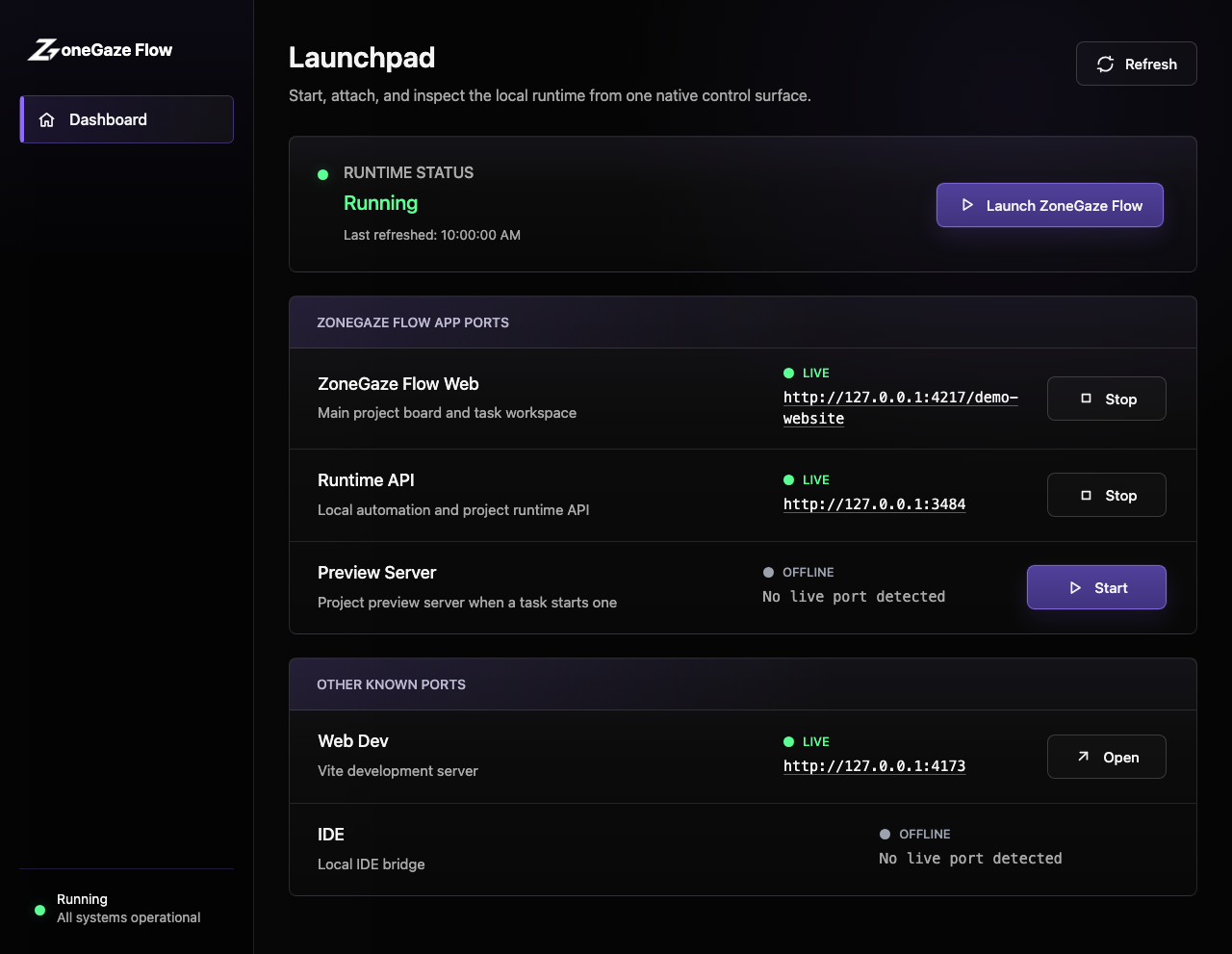
If the runtime is offline, click Launch ZoneGaze Flow. If it fails, read the displayed status and check terminal logs.
If the runtime becomes unreachable after the app has opened, use the recovery screen to restart it or attach to an external runtime.
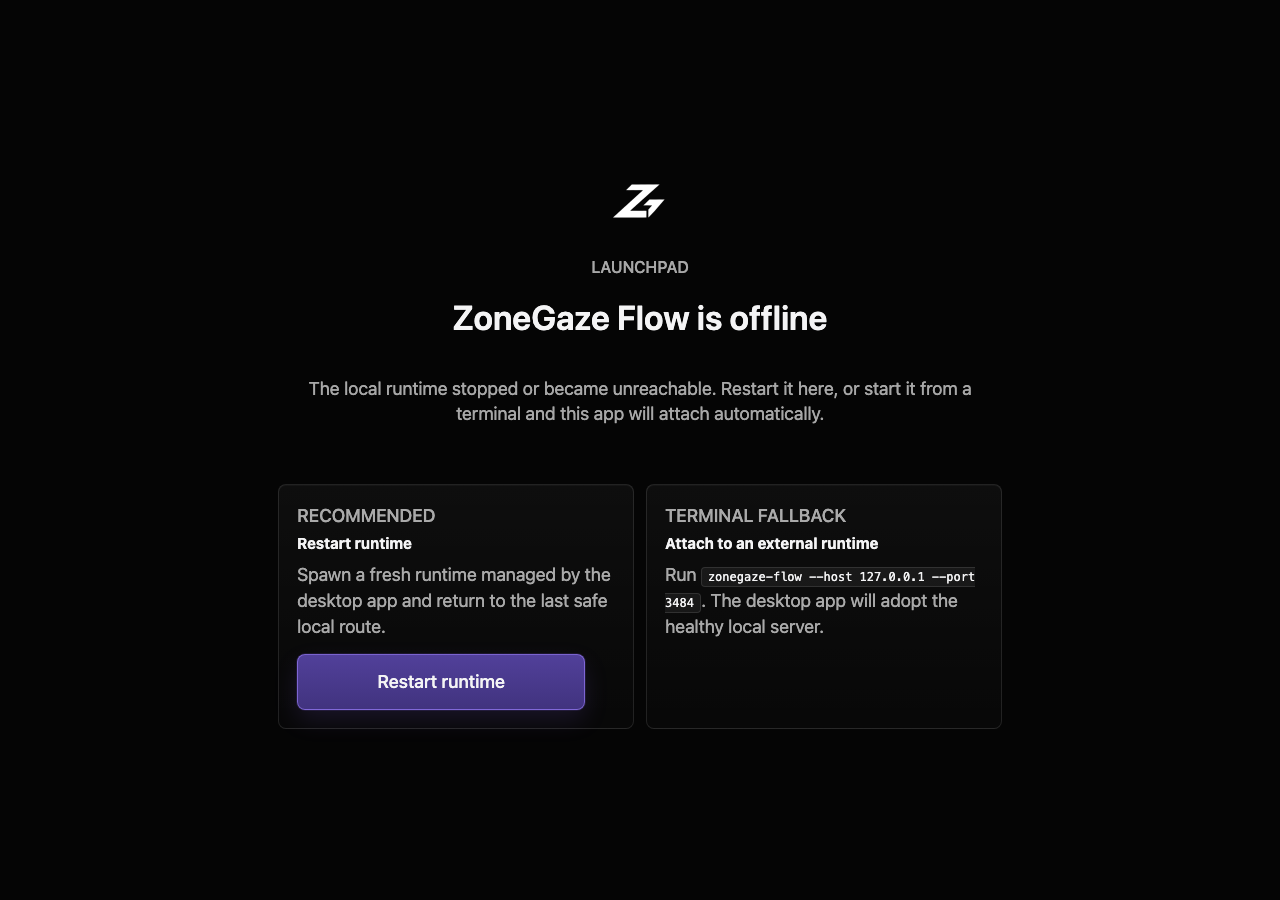
Recovery checks:
- Use the launchpad status before restarting anything.
- Confirm the expected port is not already occupied.
- If the app can attach to an external runtime, verify that URL before launching a second runtime.
- If the board was already open, refresh only after the runtime status changes.
- If the runtime repeatedly exits, keep the terminal output and app status text for the support packet.
A Project Is Missing
Use Add Project. If the folder picker is unavailable, enter the path manually.
Remote or headless environments may not support native folder pickers. Manual path entry is the expected fallback.
An Agent Cannot Start
Check:
- the selected agent is installed
- provider authentication is complete
- required CLI commands are on PATH
- the project is readable
- the Git base ref exists
- no required secret is missing
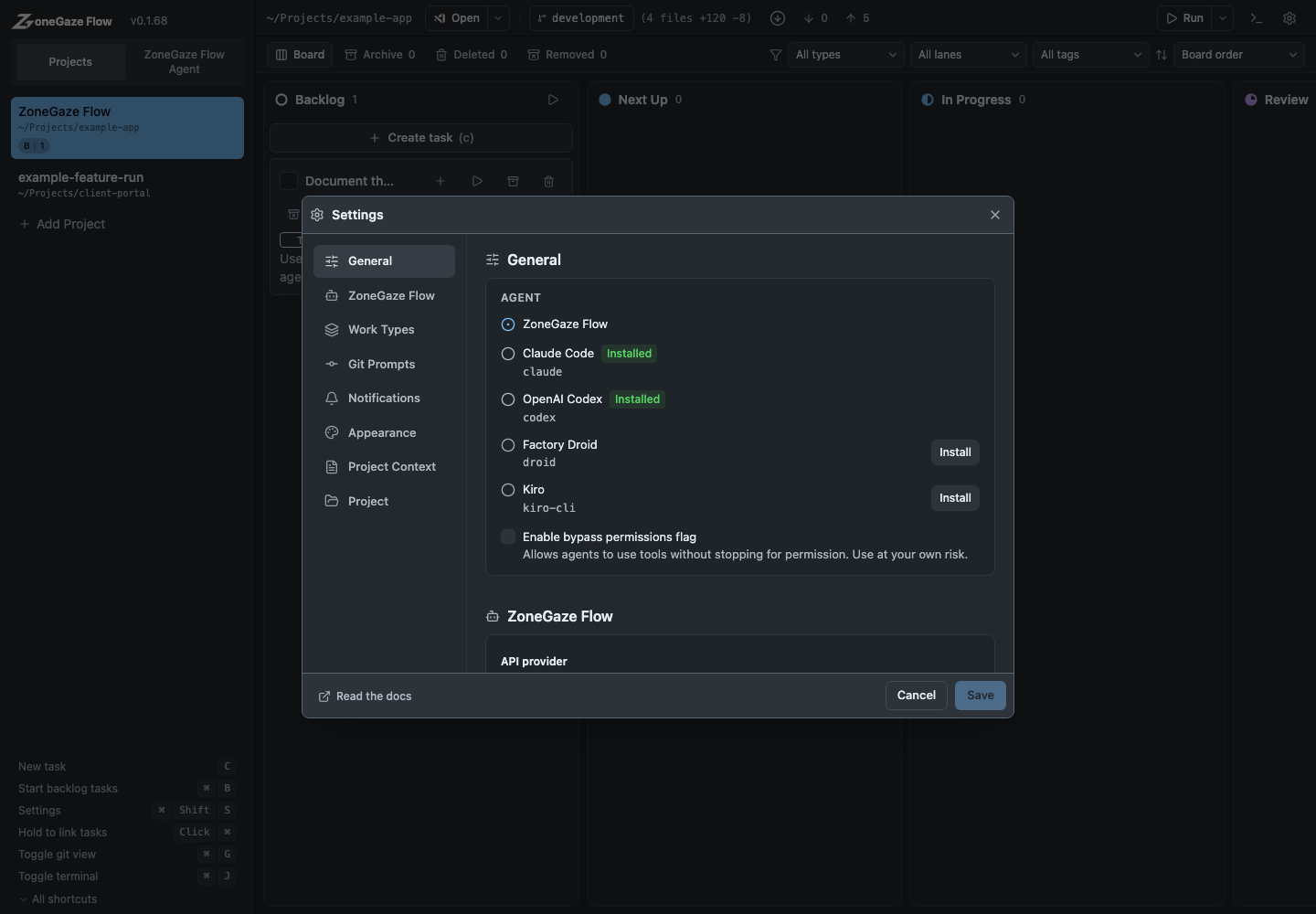
Open Settings and inspect the agent section before retrying.
Android Setup Is Blocked
The Android app needs compatible Termux and Run Command permission for the full runtime.
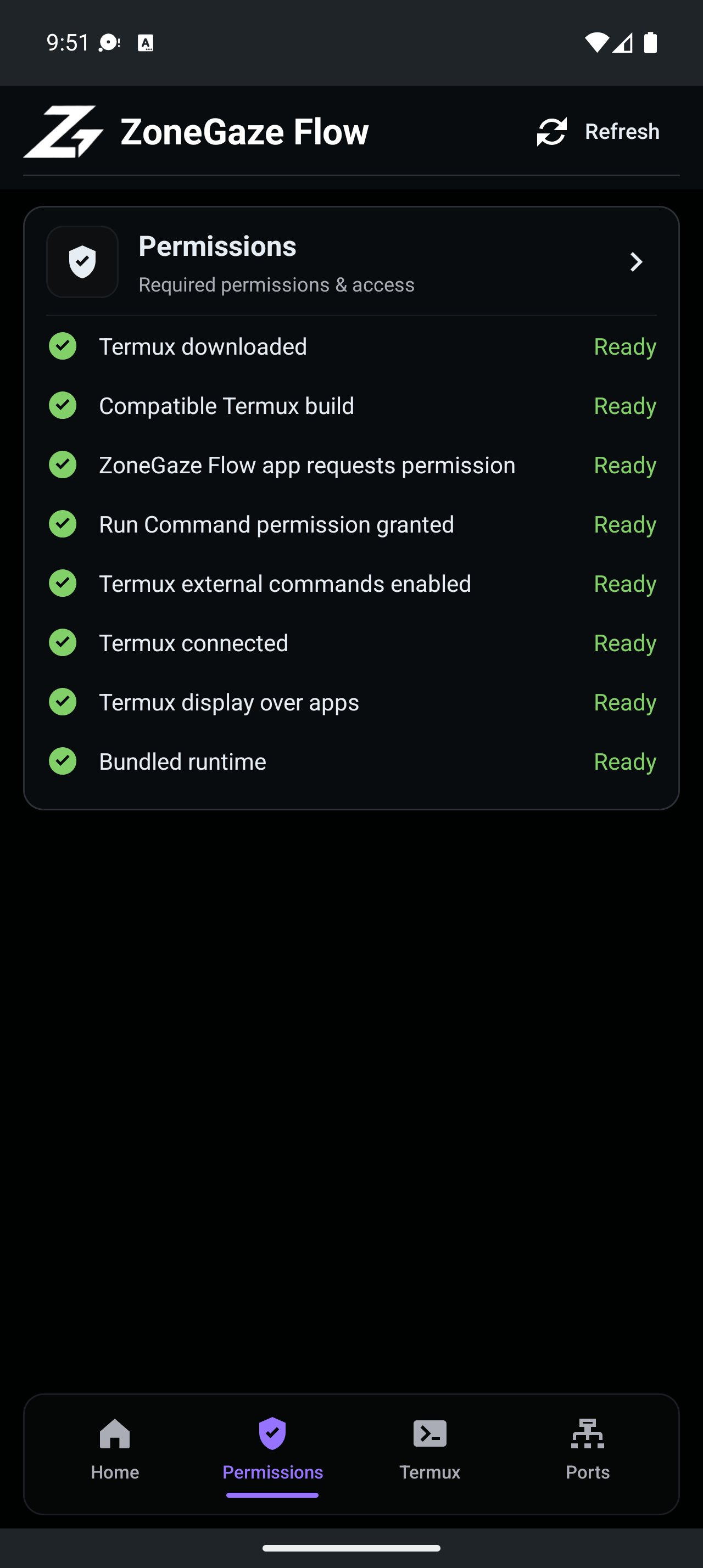
Grant the Android Run Command permission when the app asks for it. Without that permission, the native app cannot run the Termux setup/update commands.
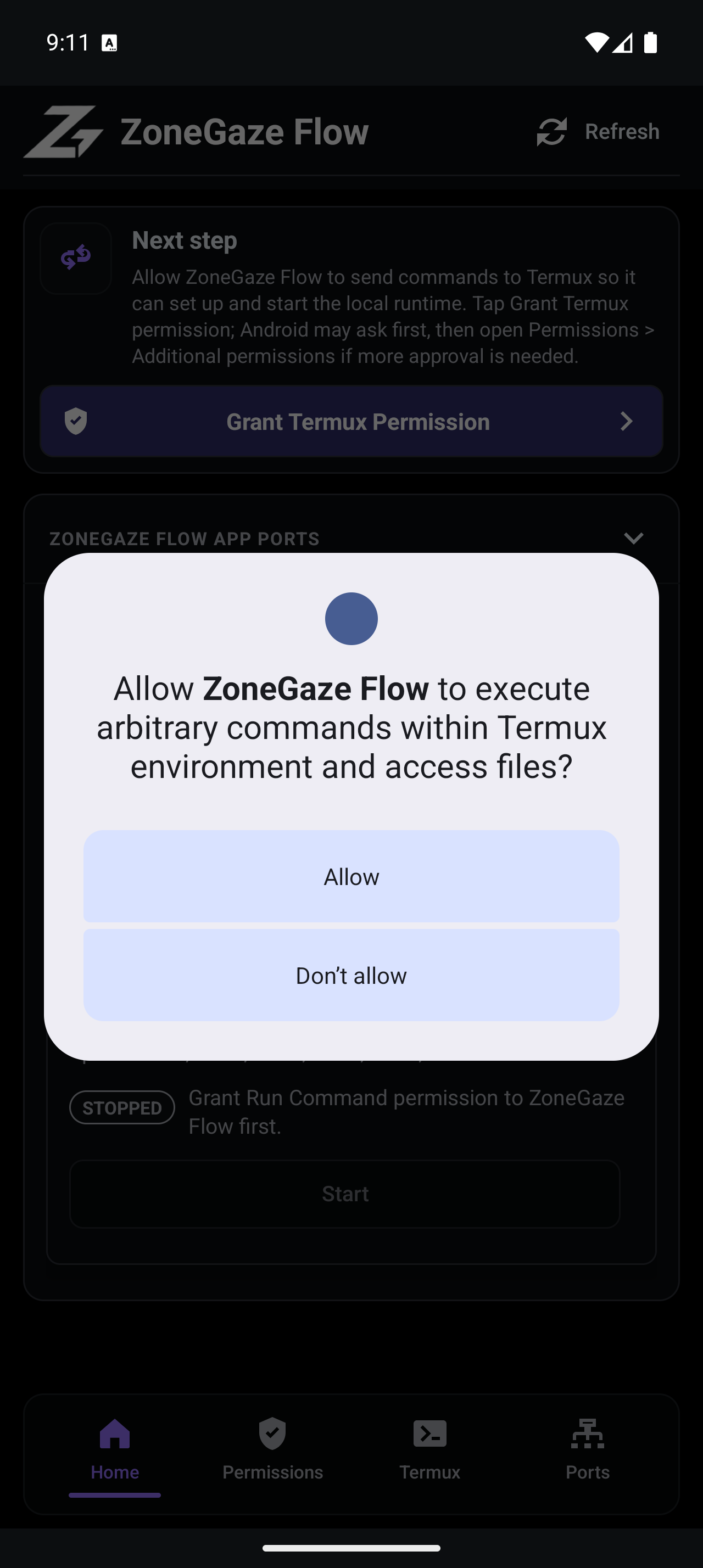
If Termux is missing or incompatible:
- Install a compatible Termux build from F-Droid or GitHub releases.
- Open Termux once and let first-start setup finish.
- Return to ZoneGaze Flow.
- Grant Run Command permission when prompted.
- Run Setup / Update again.
If Setup / Update repeatedly fails during package installation, confirm the emulator or device has enough free internal storage for Termux package archives and upgrades.
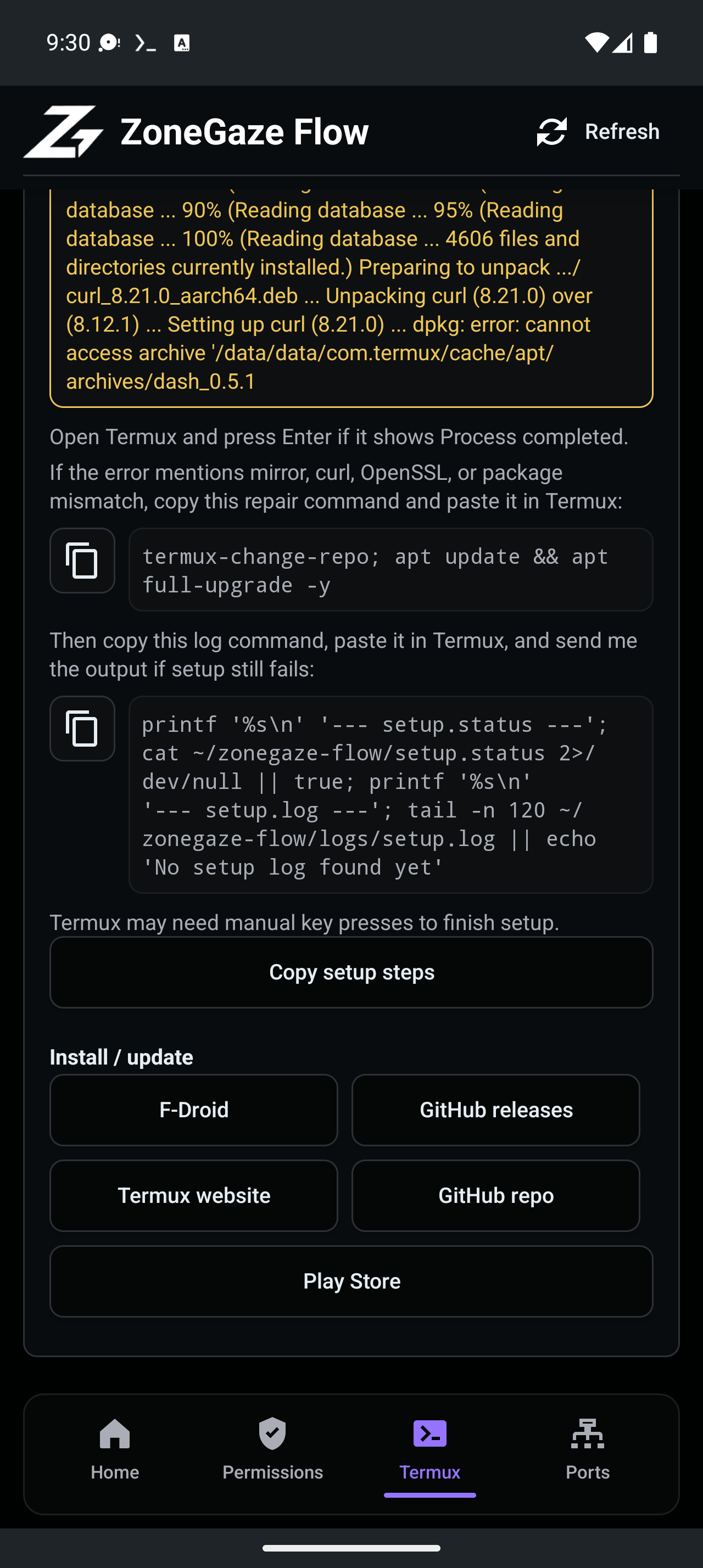
Android Storage And Termux Repair
The current successful Android evidence used a connected Android 16 emulator with a 12 GB data partition. Earlier setup failure evidence came from an emulator with about 281 MB free on /data, where Termux package archives were missing during apt/dpkg upgrade.
When Android setup fails:
- Check free internal storage before rerunning Setup / Update.
- Confirm Termux is connected from the app before setup.
- Prefer the app-guided repair or setup controls over manually editing Termux files.
- Keep the failing Termux output if package installation fails again.
- Do not treat the earlier low-storage failure as current runtime evidence.
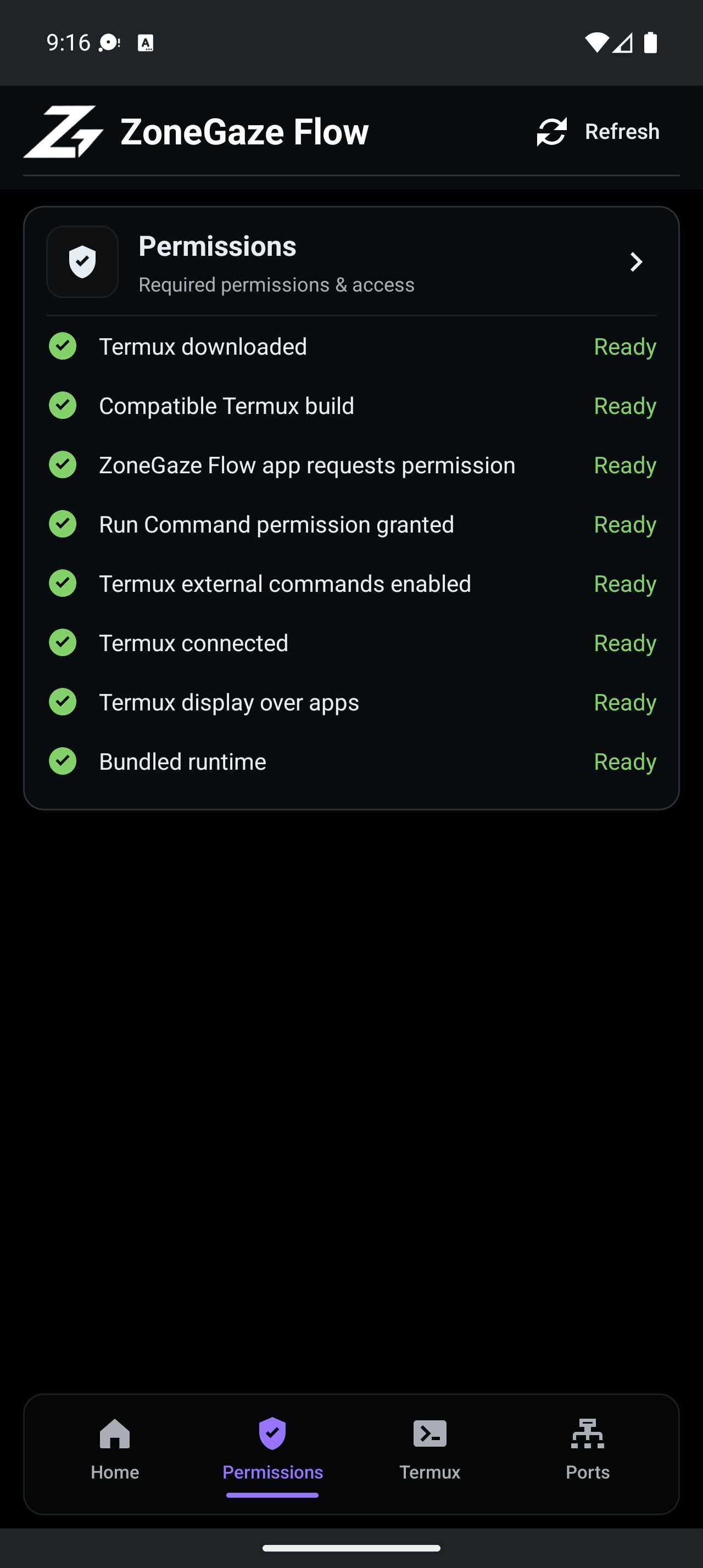
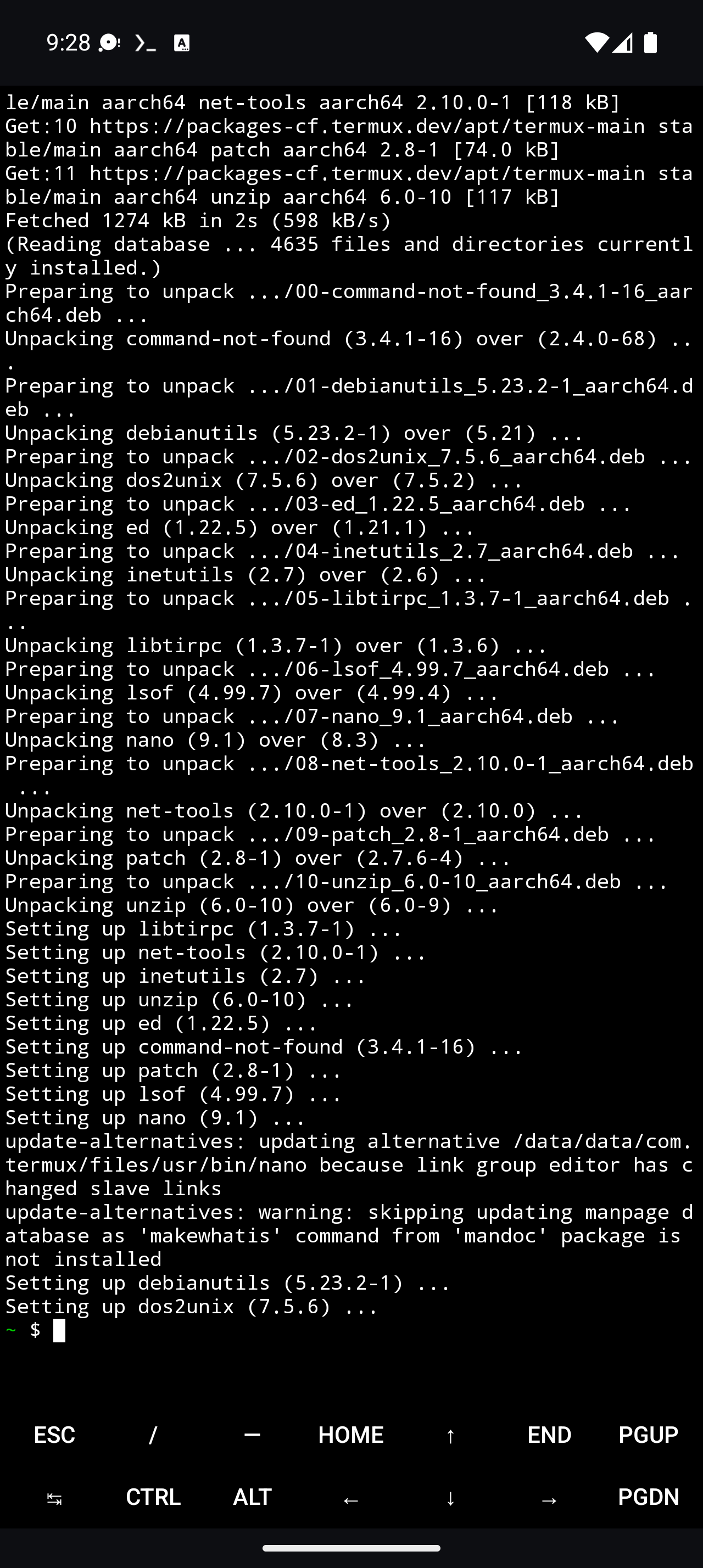
The current completed Android runtime path is shown in the captured setup/runtime video.
Watch the Android setup and runtime workflow
Terminal Shows Old Output
The terminal can persist session output. Clear or restart the terminal if old commands obscure current evidence.
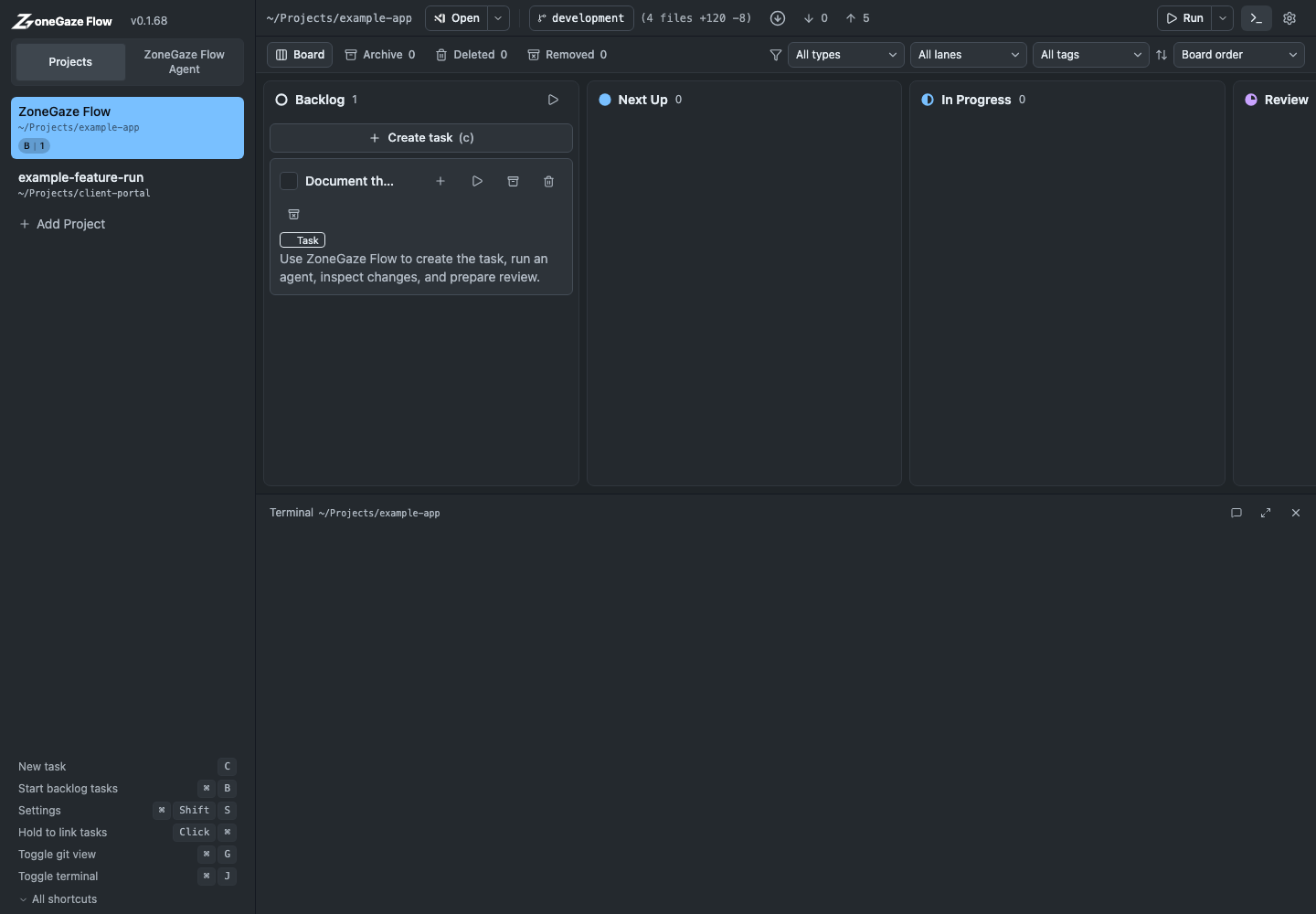
Git State Looks Wrong
Open the Git history view and refresh.
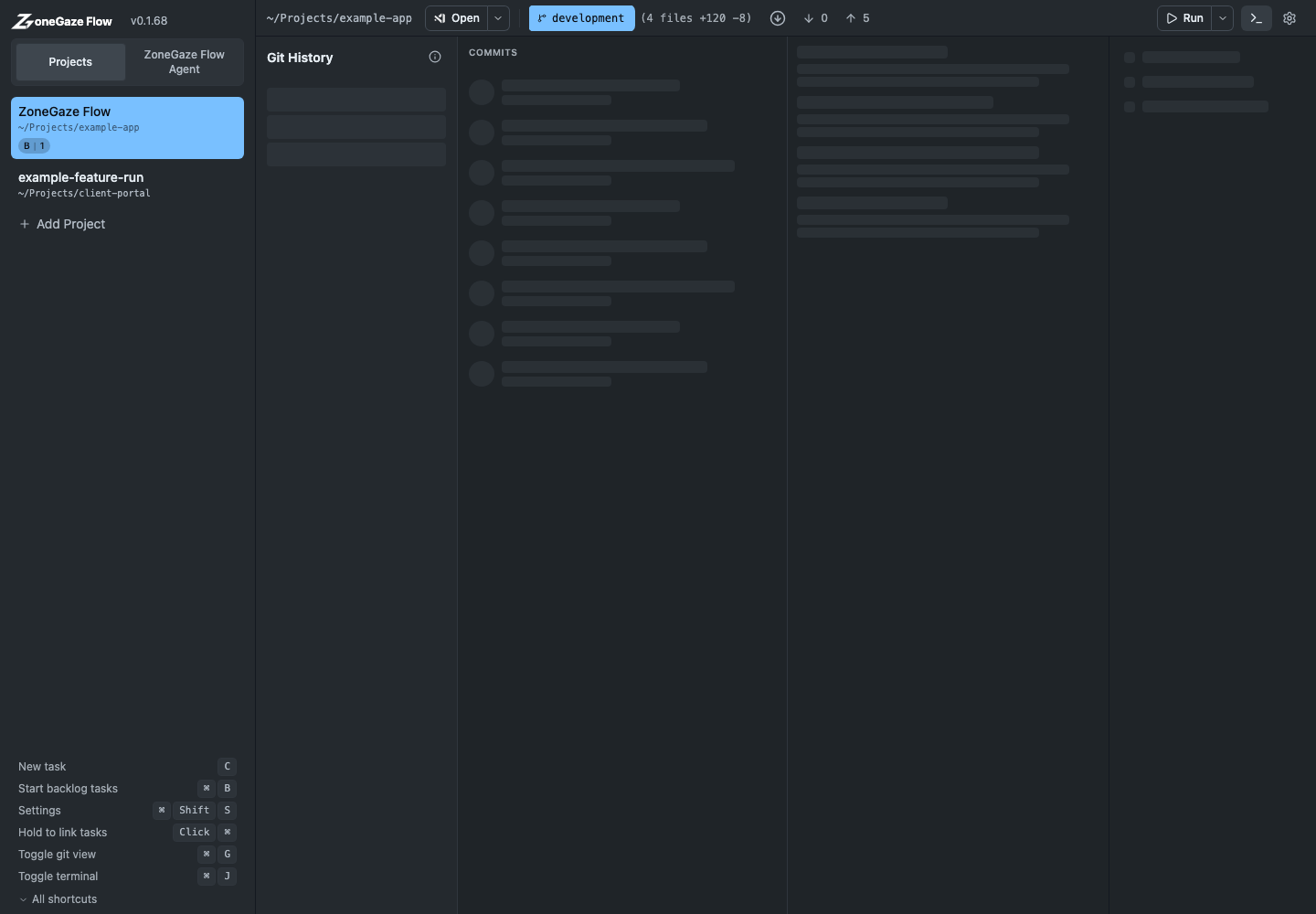
Check:
- current branch
- upstream state
- changed file count
- untracked files
- whether the task is using a worktree
Evidence Boundary
Use current captured evidence to separate real runtime behavior from old failure context:
- Current web evidence covers the board, task creation, task detail, terminal, Git history, and archive views.
- Current Mac evidence covers the launchpad, runtime status, disconnected recovery, and runtime-status video.
- Current Android evidence covers Termux connection, permission, setup-complete, runtime-running, and WebView board states.
- Earlier Android low-storage setup failure is troubleshooting context only.
Read Platform notes for platform behavior and Media status for what the screenshots and videos show.
Support Packet
Collect:
- platform and app version
- project path
- runtime status
- exact error message
- relevant terminal output
- what you expected to happen
Then share the smallest reproduction through Support. Do not include secrets, private keys, access tokens, private repository contents, or unrelated personal data.
Leave with a concrete next action.
Each doc page should end with a command, route, verification step, screenshot, or support packet users can act on.
Do not strand the reader.
Link to the next workflow page, install guide, troubleshooting, demos, downloads, or support depending on the page topic.